Analytics
The Analytics section contains reports generated by the partner's team in Sailplay, as well as interfaces for creating and configuring new report instances.
When a new account is created during integration, the reports section may initially be empty. To add the basic reports, contact your manager or send a request to support@sailplay.net.
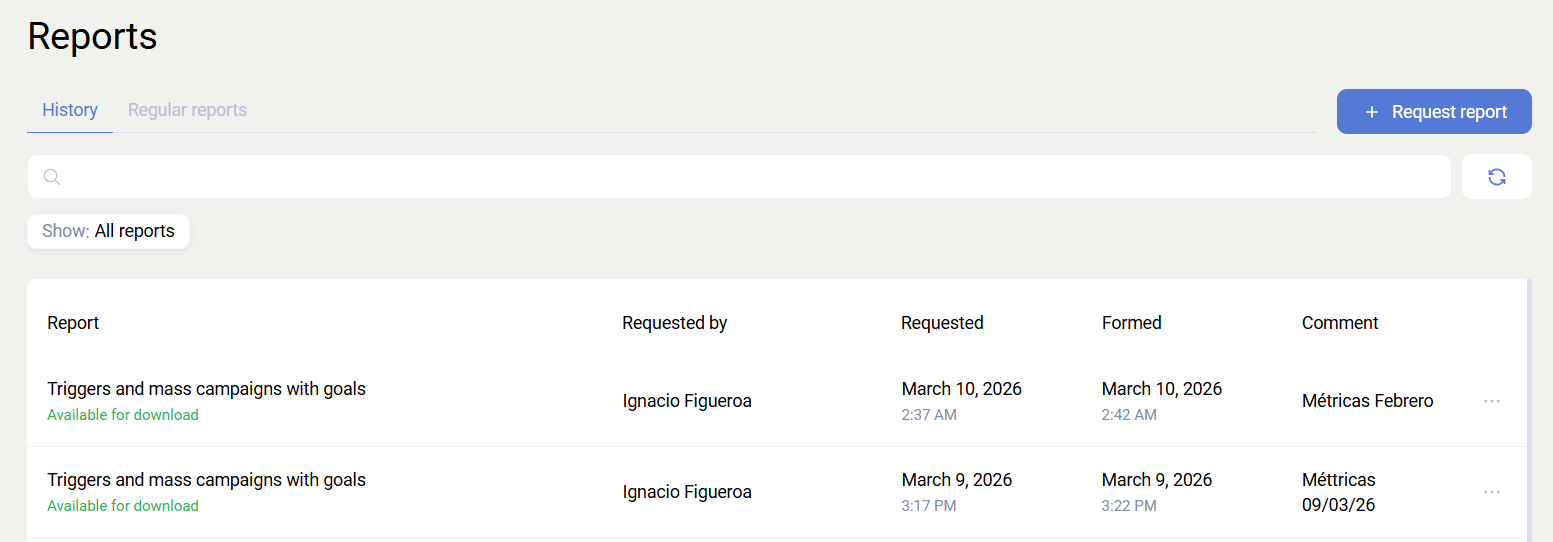
Each report includes:
- Name - the report name.
- Requested by - who requested the report.
- Requested at - when the report was requested.
- Generated at - when the report was generated.
- Comment - any additional information about the report.
The following actions are available for each report:
- Download
- Request again
- Archive
Generating a report
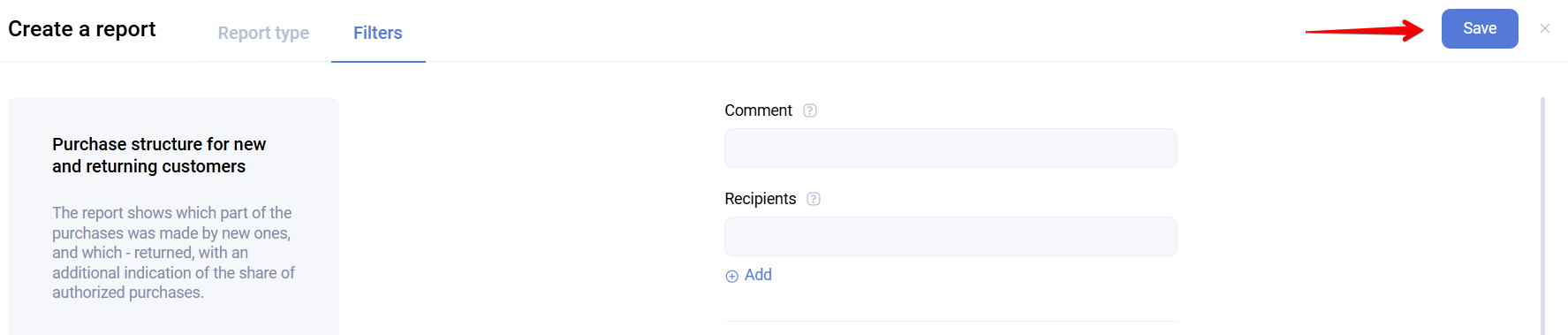
To generate a new report, click Request report, select the required report, and click Next.
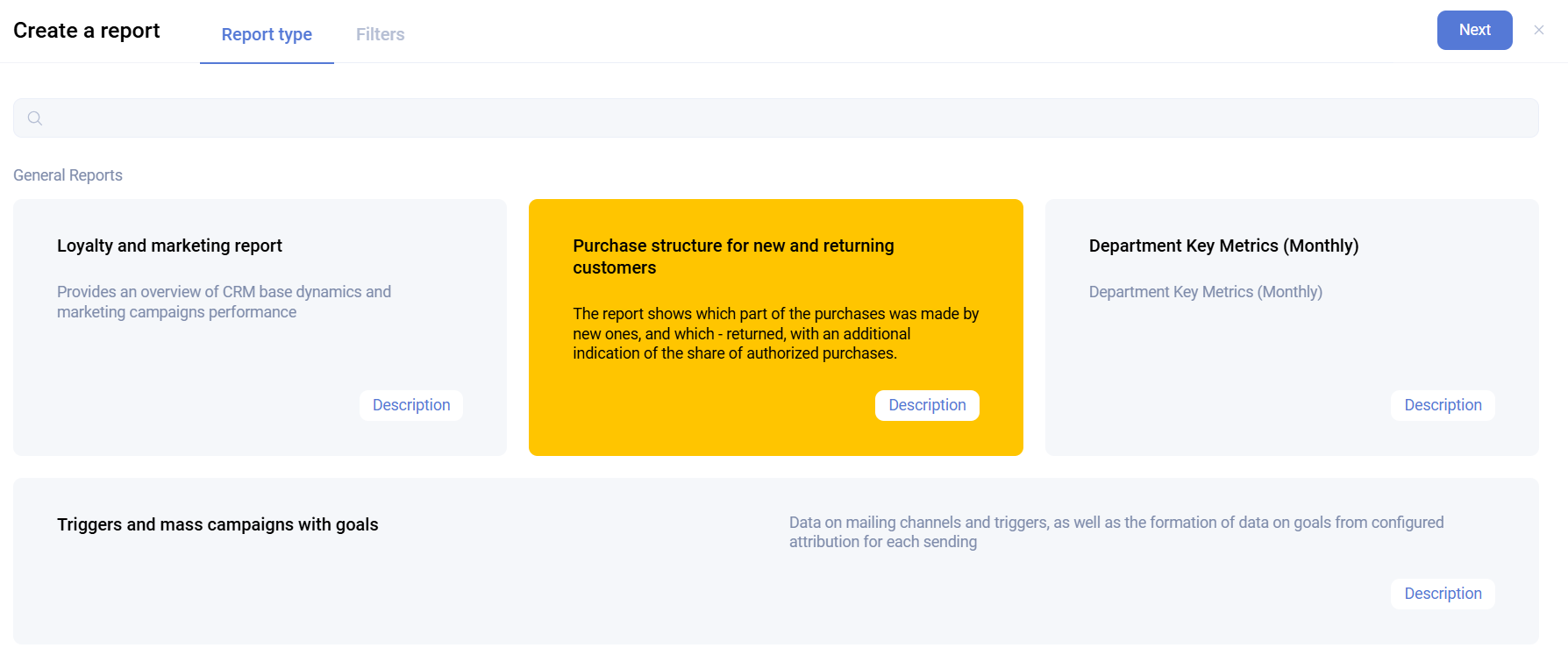
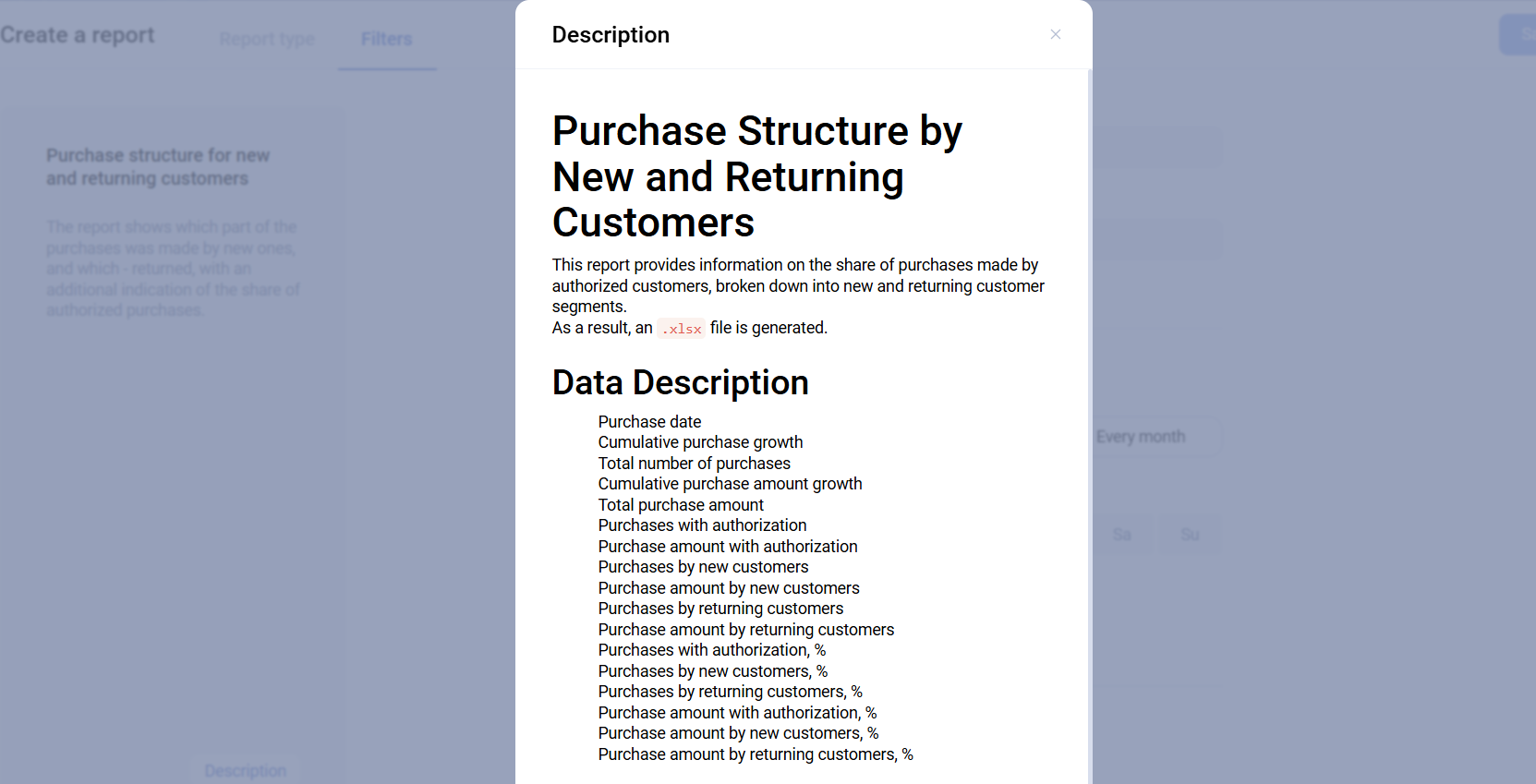
Each report also has a detailed description. An example is shown below:
After clicking Next, the Filters tab opens. It is individual for each report. Only two fields are shared across all reports:
- Comment - any additional information about the report.
- Recipients - allows you to specify recipients for a recurring report. When the report is generated, a notification will be sent to the specified email addresses.
The remaining fields are client and purchase filters required for the selected report.
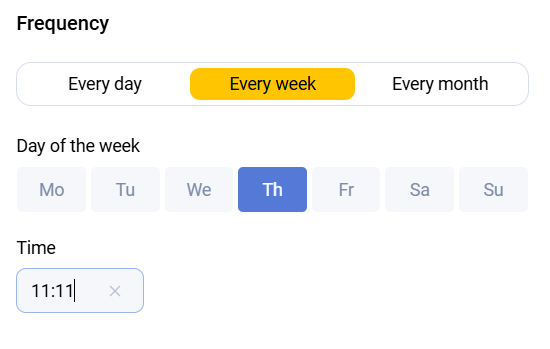
In addition to one-time generation, recurring report generation is also available.

When a recurring report is configured, an additional block appears on the Filters tab, allowing you to set the export frequency.
After configuring the report filters, click Save to start report generation.
Attribution model
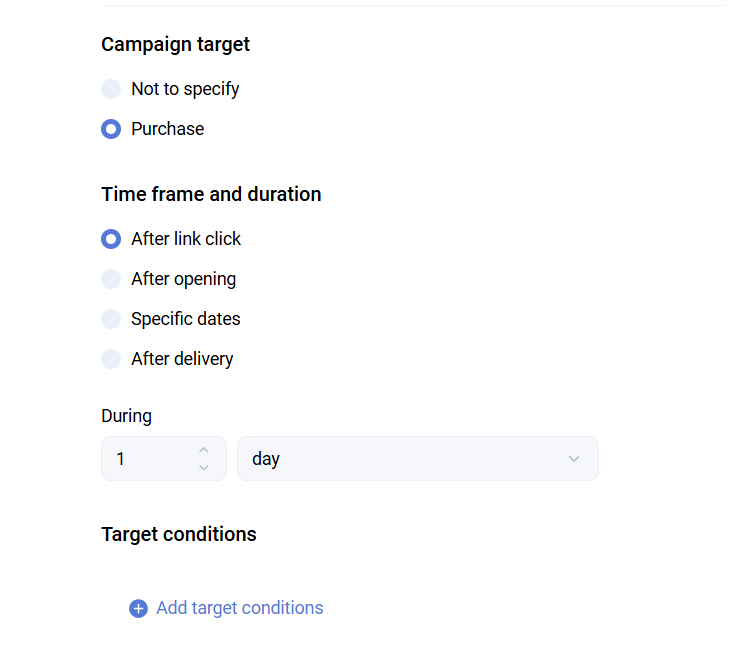
Sailplay supports configuring an attribution model that defines the relationship between a completed purchase and a marketing communication. This feature is available for both bulk mailings and trigger scenarios. For trigger scenarios, the attribution model can be configured for any block.
The attribution model can be configured for all communication channels: Email, SMS, Viber, and Push.
Purchases can be attributed in the following ways:
- After click - counts purchases completed within a specified time after clicking a product link inside the mailing. Available only for Email mailings.
- After open - counts purchases completed by users who opened the mailing. You also specify the period after the open during which the purchase must occur. Available for Email mailings and Push.
- Specific time - counts purchases made during a specific time interval defined by start and end dates. Available for all communication channels.
- After delivery - counts purchases completed within a specified time after the message was delivered. Available for all communication channels.
Purchases can also be filtered by amount, product composition, department, and promotion. The last option is especially useful when tracking the effectiveness of a specific promotion.
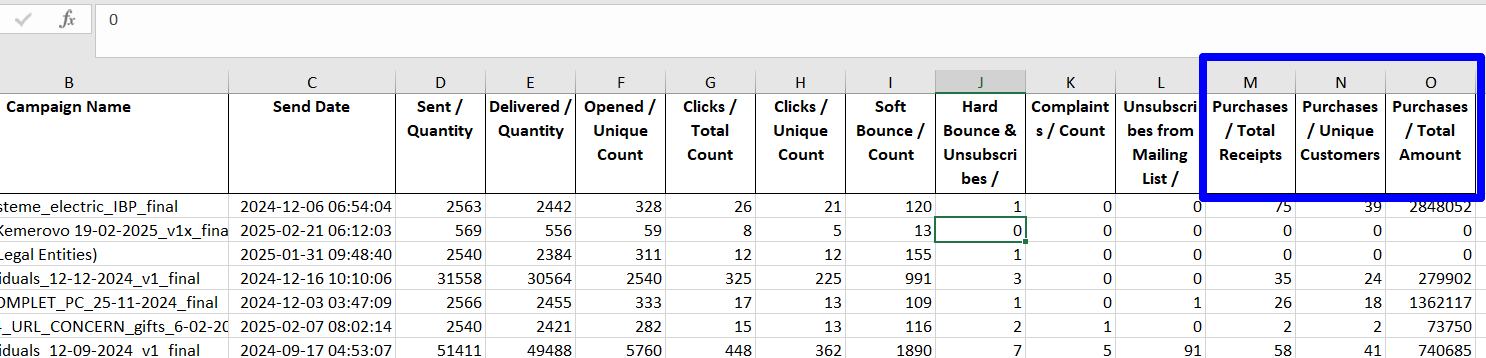
You can view the results, including the total purchase amount attributed to a mailing, in the Triggers and Mailings report. If an attribution model is configured for a mailing, separate columns will display the number of orders, unique clients, and total purchase amount.
Examples of popular reports
- Triggers and Mailings - includes analytics for the Email, SMS, and Push communication channels. If a purchase is set as the goal in the trigger or mailing settings, the report will show how many times that goal was achieved.
- Report on bonus point accruals, deductions, and expirations for a period - shows bonus point accruals, deductions, and expirations grouped by transaction type.
- Key metrics by department - collects the main sales statistics for different departments within the selected period.
- Purchase structure for new and returning clients - shows what share of purchases was made by new clients and what share was made by returning clients, with an additional breakdown of identified purchases.
- Promocodes in promotions - contains information about promocodes used in promotions and the products issued as rewards.