Mailings
General information
The Mailings section contains tools for working with different types of outbound communications.
- Mailing list - a list of all created mailings.
- Templates - this area is used to create email templates. The service has a limitation here because only the Visual Editor can be used. Templates can be grouped and archived.
- Content manager - stores all images used in mailings and gifts so they can be reused in future communications. Images can be grouped into folders or sent to the archive. Media cannot be deleted permanently, so the archive works as a recycle bin for content that is no longer in use.
Mailing list
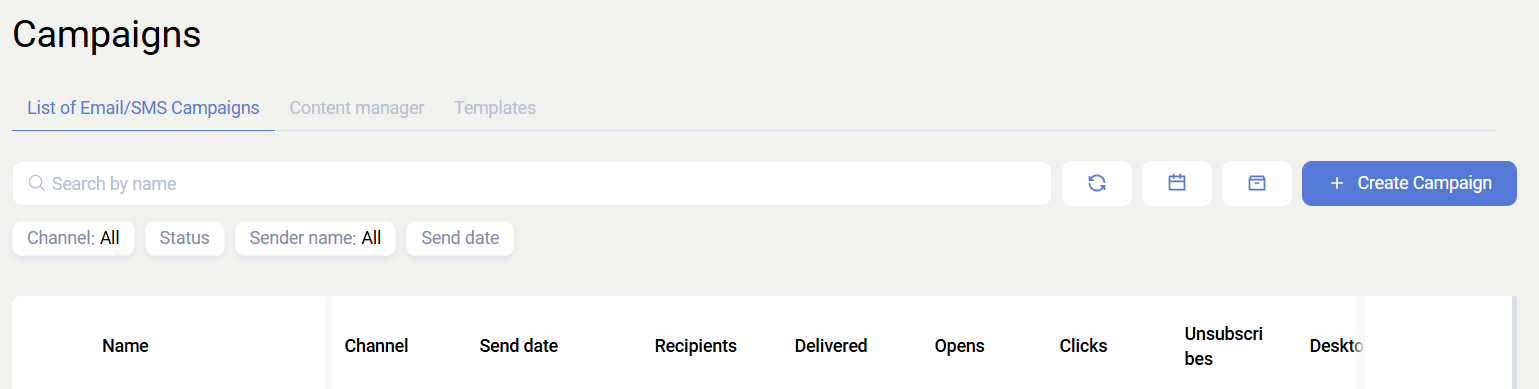
Type - filtering by mailing type
- SMS - filters not only SMS mailings, but also WhatsApp and Viber
- Email - filters email mailings
- Push - filters push mailings
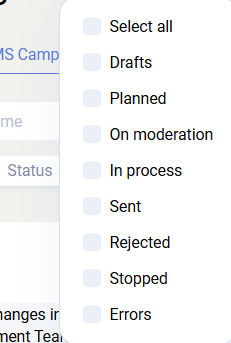
Status - filtering by mailing status.
- Drafts - the mailing can still be edited: audience, content, send date and time can be changed, and the mailing can be sent for moderation or archived. In the list, the card shows
Planned + date/timeorSend immediately after moderation. - Scheduled - the mailing cannot be edited, but it can be archived or sent for moderation. In the list, the card shows
Scheduled for + date/time. - On moderation - email and push moderation is currently being phased out, so this filter is becoming partially irrelevant, but it remains applicable for SMS mailings because SMS is the most expensive communication channel.
- Sending in progress - the mailing cannot be edited, but it can be archived or paused. Once a completed mailing has been stopped, it cannot be launched again. You need to create a copy and send it again.
- Sent - mailings already sent to clients. In the list, the card shows
Sent + date/timeand short statistics such as deliveries, opens, clicks, and so on. - Rejected - mailings rejected because of potentially unacceptable content.
- Stopped - mailings that were manually stopped during sending. In the list, the card shows
Stopped + date/time. - Errors - mailings that were not sent due to external reasons, for example content errors or audience generation issues. In the list, the card shows
Error.
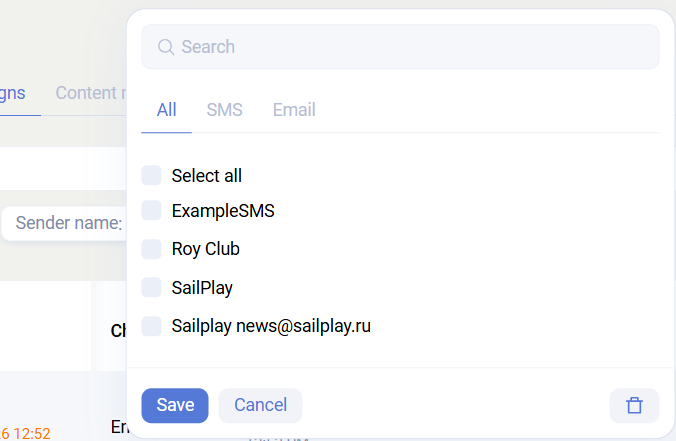
Sender - filters by sender name. A partner can have several sender names, both across different mailing types and within a single type.
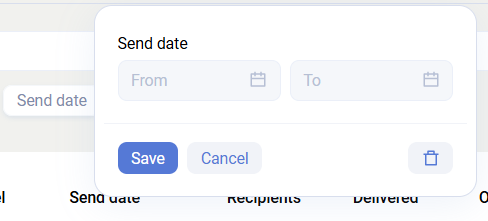
Send date - filters by send date.
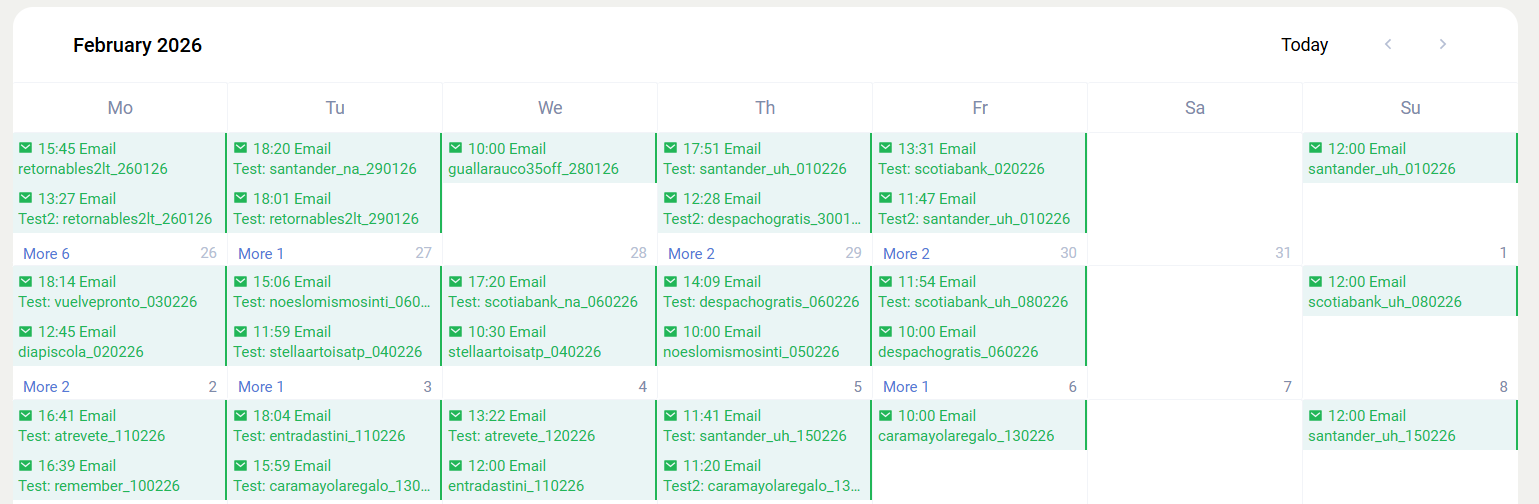
Calendar - switches the display to calendar mode so you can see when mailings were scheduled and sent.
Creating mailings
Sailplay supports the following mailing types:
- SMS
- Viber
- Mobile Push
Any mailing is created by clicking Create mailing in the upper-right corner of the Mailing list page.
Information
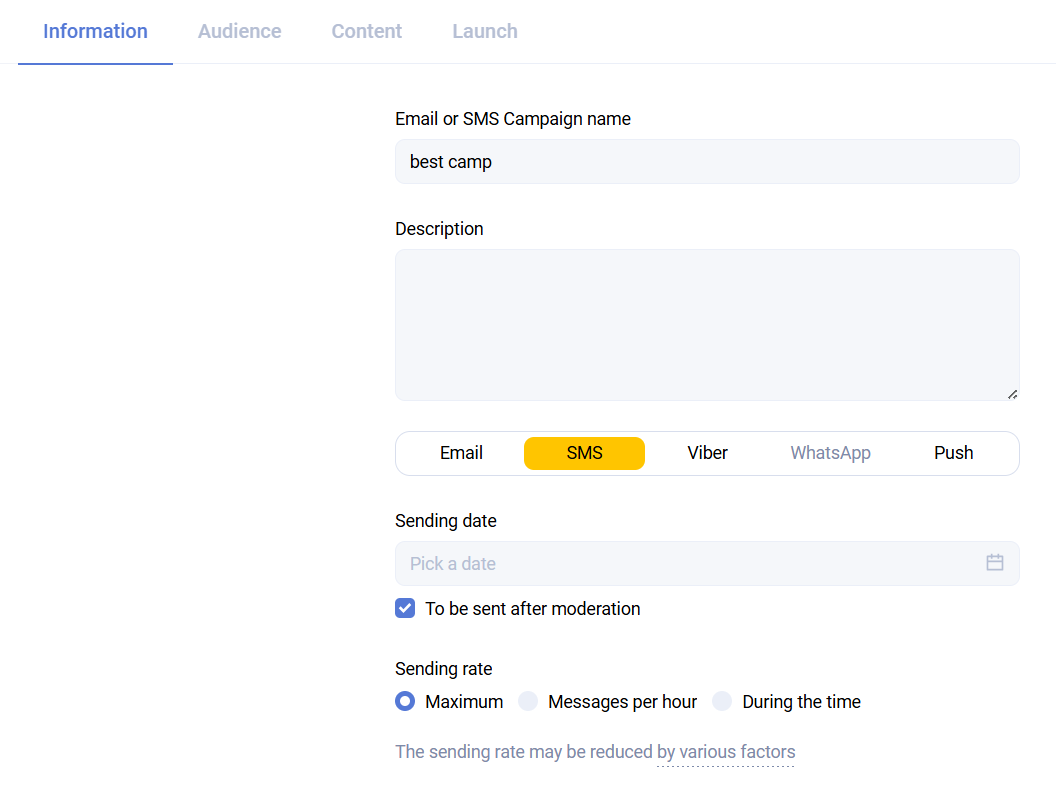
Mailing name - displayed in the dashboard. Required for all mailing types.
Description - optional. You can use this field to record why the mailing was created.
Send date - by default, sending starts immediately after creation. If you clear the checkbox, you can specify an exact send time.
Send pace
- Normal - sends all messages as quickly as possible.
- Messages per hour - sends the specified number of messages within 1 hour. The minimum is
10000messages per hour. - Number of hours - the reverse of
messages per hour. The mailing is spread over the specified number of hours, with a minimum of1hour.
Mailing goal - a tool for calculating conversion from a mailing to purchases. If you choose Purchase, and the recipient buys a product within the configured time window, that purchase is treated as the result of the mailing. This data can be used to evaluate mailing performance.
- Window and duration - the period during which a purchase is considered the result of the mailing. You can specify:
- After click - the client clicked a link in the email. Relevant only for email.
- After open - the client opened the email. Relevant only for email.
- Specific time - the purchase was made within a specific period.
- After delivery - the message was delivered to the client.
- Goal conditions - additional purchase requirements. For example, if the mailing promotes a specific product, you can require that product to be present in the purchase. The purchase filter here is identical to the purchase filter in the Clients section.
Communication types - an additional way to segment both the mailing and the clients who received it by communication type and channel. For example, if the communication type email is selected, recipients will receive a tag such as Received message type ....
Audience
The Audience tab is the same for all mailing types.
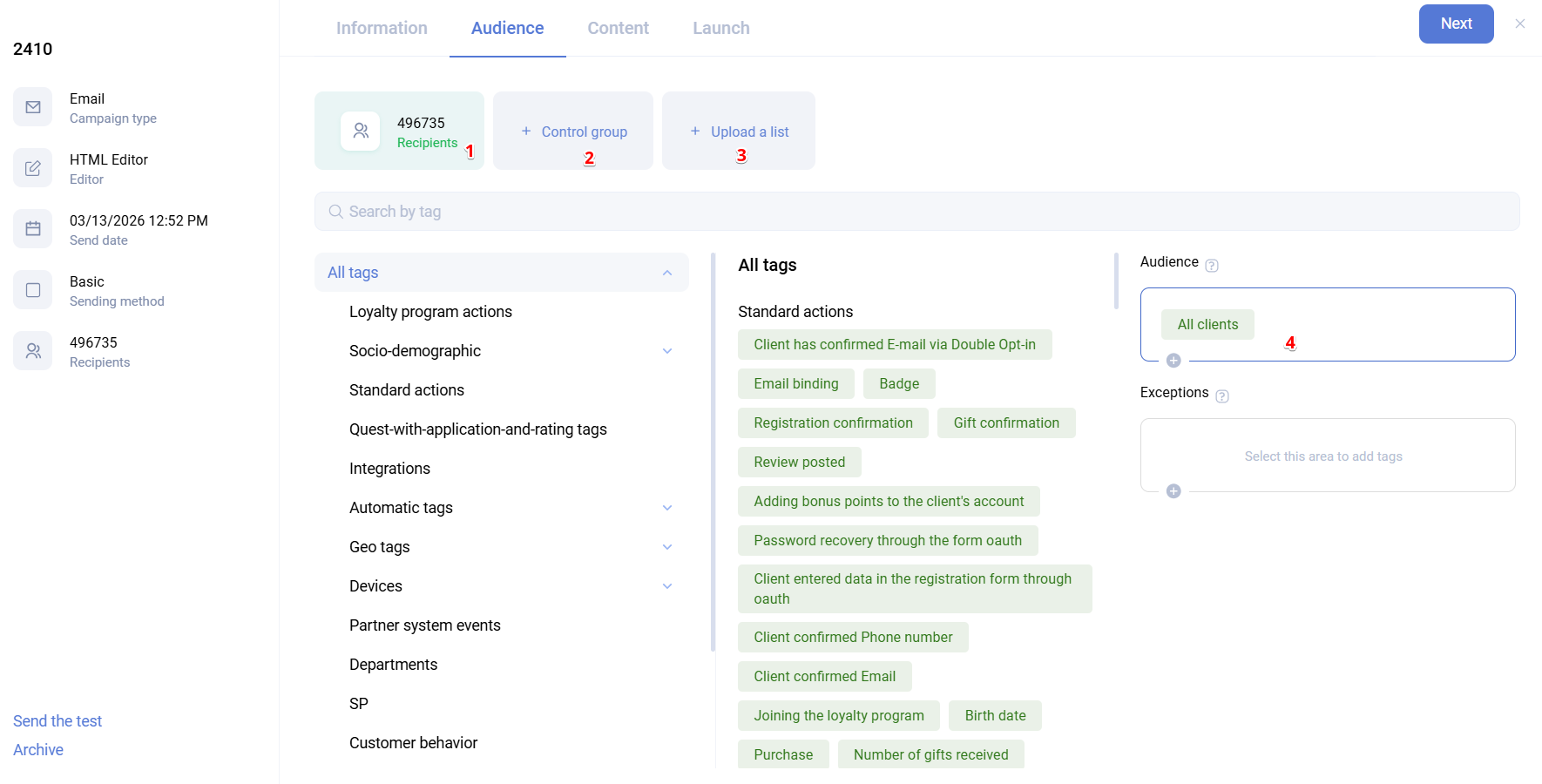
- The audience calculated from the selected conditions. Clicking the number opens the Clients section in a new tab with the corresponding filters applied. Clients who do not have a relevant contact value, such as email or phone depending on the mailing type, or who are not subscribed to the channel, are always excluded automatically.
- Control group - a segment of the audience that matches the selected conditions but does not receive the mailing. This group is used to measure the actual impact of the communication and determine whether sales were really caused by the mailing or happened independently. Members of this group receive the corresponding tag after the mailing.

- Upload a list - allows you to configure the mailing audience by uploading a specific list or file of users and assigning a tag to them. This works similarly to client uploads in the Clients section.
- Audience filters by tags. Conditions can be combined with
ANDandOR. If more than one tag is selected, anandmarker appears and can be switched toor.
Launch
All mailing types are launched in the same way: after the required fields are filled in, go to the Launch tab and click Launch mailing.
Once a mailing has been launched, it can no longer be edited, even if the actual send start is still in the future. If sending has not started yet, the launched mailing can be canceled from the editing window by clicking Cancel mailing.

To stop a mailing that is already being sent, open the action menu for the mailing in the list and click Pause. The mailing will move to the stopped status.
Email mailings
When creating an Email mailing, the Information page requires you to choose an editor type:
- Stripo - a drag-and-drop visual editor that allows you to create responsive templates without HTML or CSS knowledge.
- Visual Editor - also an HTML editor that does not require HTML or CSS knowledge, but it is older and has a more complex interface. It allows using ready-made templates.
- HTML Editor - a code-based template editor. It is the most flexible option but requires HTML and CSS knowledge.
You can also choose a sending method:
- Regular - a standard bulk mailing to the selected audience.
- A/B/N test - a tool for selecting the most effective email template. The audience is split into small A and B groups, and sometimes more, plus the main audience. The test segments are sent first, then the winning template is selected according to the configured criteria and sent to the main audience.
If you choose A/B/N test, an additional tab called Best variant appears. It is used to configure how the winning template is selected.
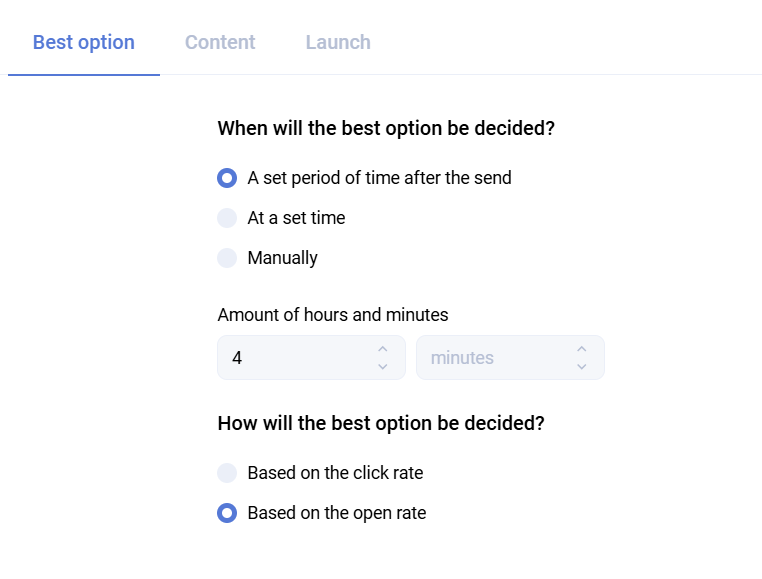
- When the best variant is determined - when to choose the winning template that will be sent to the main audience. You can specify a time relative to the end of the test, an exact time, or
Manually, in which case the main send is not started automatically. - How the best variant is determined - the method used to evaluate performance: by number of opens or by number of clicks.
In the database, each template of an A/B/N mailing is stored as a separate mailing. For example, if there were two test segments and one main segment, the database will contain three mailings with almost identical names but different IDs.
Content
Work in the selected editor happens on the Content tab. There you need to specify:
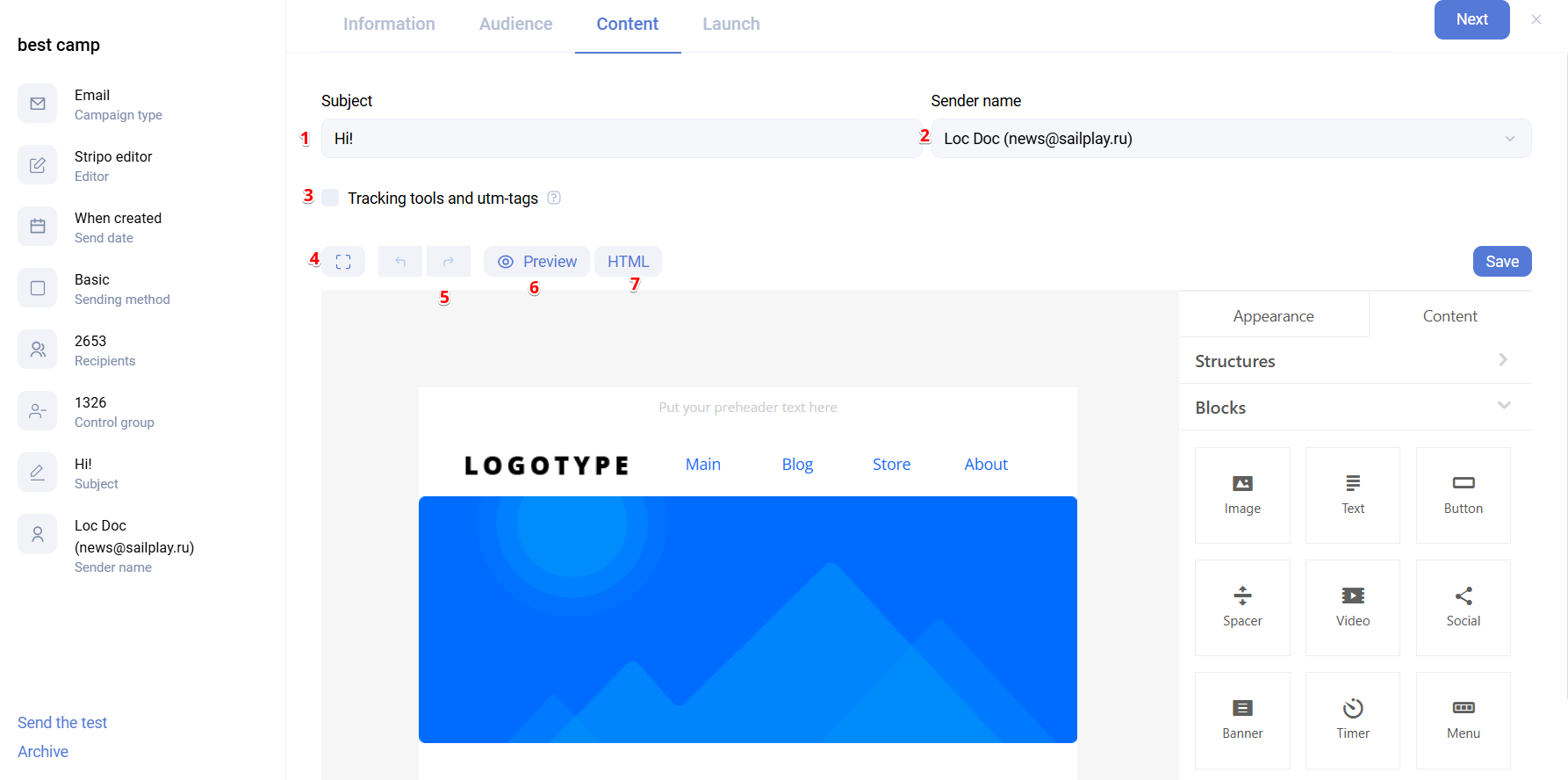
- The email subject
- The sender name, which is the partner email address already configured in Settings -> Communication -> Email addresses
- If needed, you can add UTM tags and other tracking parameters to the email. To do this, enable Tracking tools and UTM tags and fill in the displayed fields. Additional parameters must be specified in
param=valueformat. Several parameters can be combined, for exampleparam1=value1¶m2=value2.
If you add parameters and tags in the template editing window, they will be applied only to that mailing. To add additional parameters to all partner mailings, specify them in the Additional parameters field under communication settings in the UTM tags and additional parameters block in the dashboard.
- This button collapses the side panel with short mailing information.
- Navigation backward and forward through editing actions.
- Mailing preview showing how it will look on desktop and mobile. If variables are used in the mailing, they appear the same way as in the editor.
- HTML editing. In this example, the Stripo editor is used. It allows ready-made blocks, but for more custom templates you can switch to the Stripo HTML editor and continue editing there.
Every time you change a template, click Save before switching to another tab of the mailing editor. Otherwise, all changes in the email template will be lost.
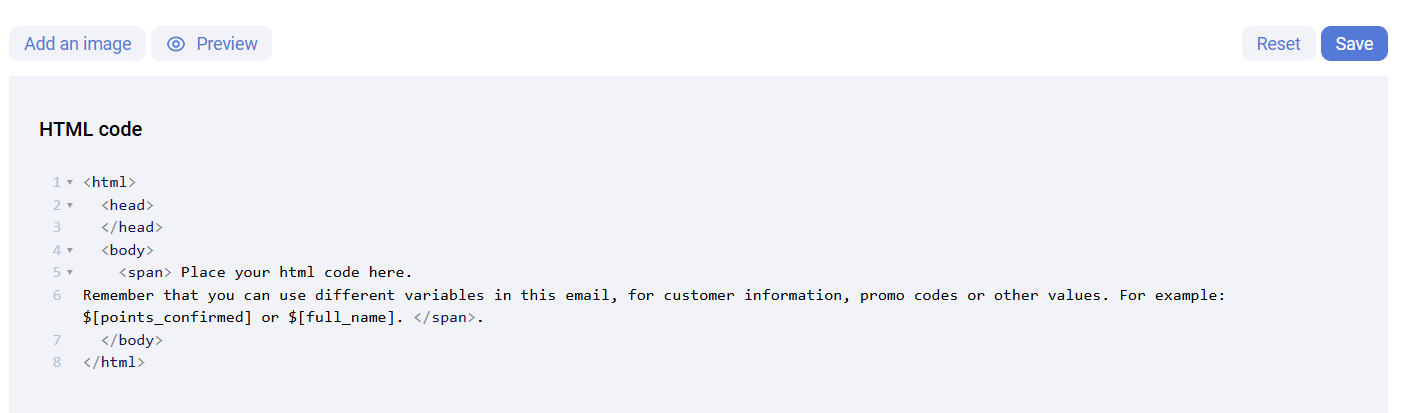
All emails except Double Opt-In emails must contain the unsubscribe variable $[unsubscribe_url].
SMS
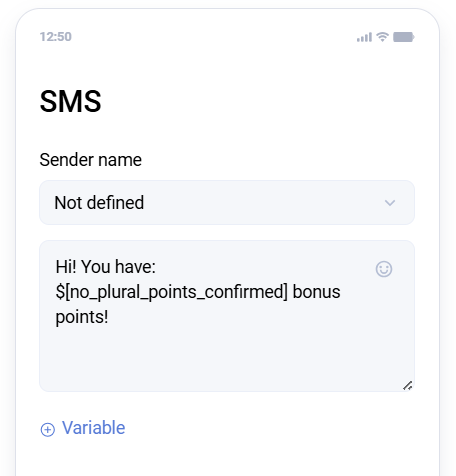
In the SMS editor, you must choose a sender name from the list of available names. As with email, there can be several sender names. If no sender names are available, the partner does not have an SMS sender agreement configured. See the instructions for connecting SMS sender names.
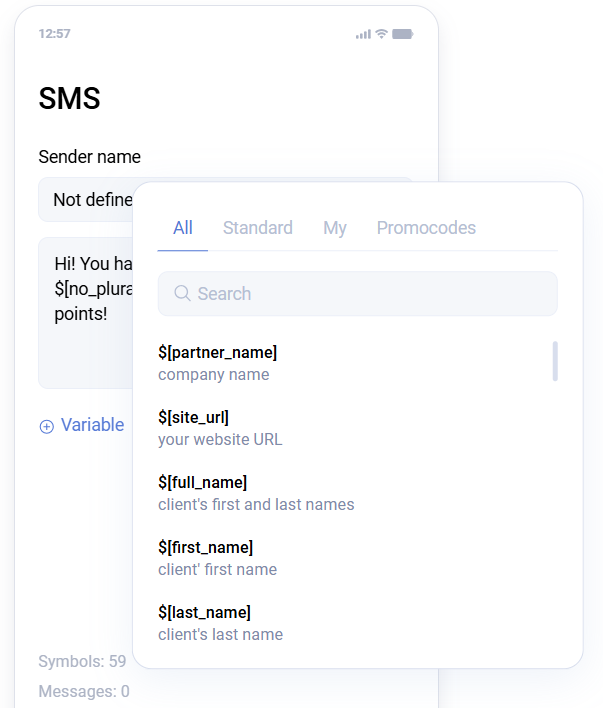
Variables can be inserted into the message text. Click variable to open the list of available variables. Clicking a variable inserts it at the current cursor position in the message text.
Viber
Editing Viber messages is almost the same as editing SMS messages: you must also choose a sender name, and variables can be used in the text. Unlike SMS, Viber messages can include images from the Content Manager and buttons with links.
For Viber mailings, the Information tab also allows you to enable fallback SMS delivery if the user does not receive the Viber message. In that case, the Content page will require two templates: the main Viber template and a fallback SMS template. Keep in mind that SMS does not support images or link buttons.
WhatsApp
Editing WhatsApp mailings is almost identical to editing SMS mailings, except:
- You do not need to choose a sender name.
- Images cannot be added.
Push
Sailplay sends Push notifications through third-party applications, so when creating a push mailing on the Information tab, you can choose one of two delivery methods:
- Application - the partner's application. If no push application is available in the dashboard, this functionality has not been configured.
- Wallet - the
Walletapplication, which Sailplay can use for push delivery under a separate agreement.
Push notifications can contain:
- Notification title
- Main text
- Variables, the same type used in email, SMS, Viber, and WhatsApp
- Images from the Content Manager
- Parameters. A parameter can contain a link that redirects the user to a specific page.
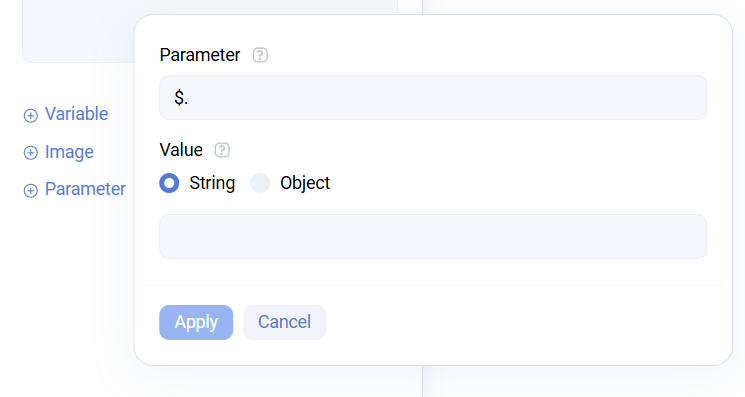
- In the
parameterfield, pass the parameter path in JSONPath format. - In the
valuefield, you can pass either aStringvalue or anObject, which keeps the value from being converted to a string.
Test sends
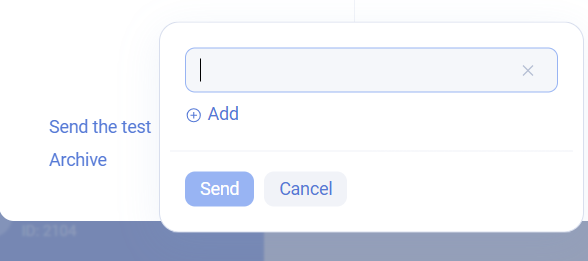
The editor for any mailing type allows you to send a test message to any recipient, even one who is not registered in the Sailplay dashboard, using an email address or phone number. The button is located in the lower-left corner of the mailing creation window.
- Mailings that contain variables
- Mailings with RR recommendations
- Emails sent as part of Double Opt-In
Depending on where the mailing was created, in a trigger or in the Mailings section, the following testing approaches can be used:
- If the mailing is inside a trigger and does NOT contain RR algorithms, it can be tested from the client card by clicking Launch trigger.
- If the mailing is inside a trigger and DOES contain RR algorithms, it can be tested by assigning the corresponding tag according to the relevant instructions.
- In the Mailings section, testing should be done by sending to a dedicated test audience. To configure it, create a tag, assign it to the test recipients, and configure the mailing audience using that tag.
Analytics
The Sailplay dashboard provides real-time mailing statistics. Short statistics are available in the Mailing list, and detailed analytics can be opened by clicking the eye icon for the required mailing.

Information (relevant for all mailing types)
In email mailings, this section duplicates the Launch tab from the mailing editor.
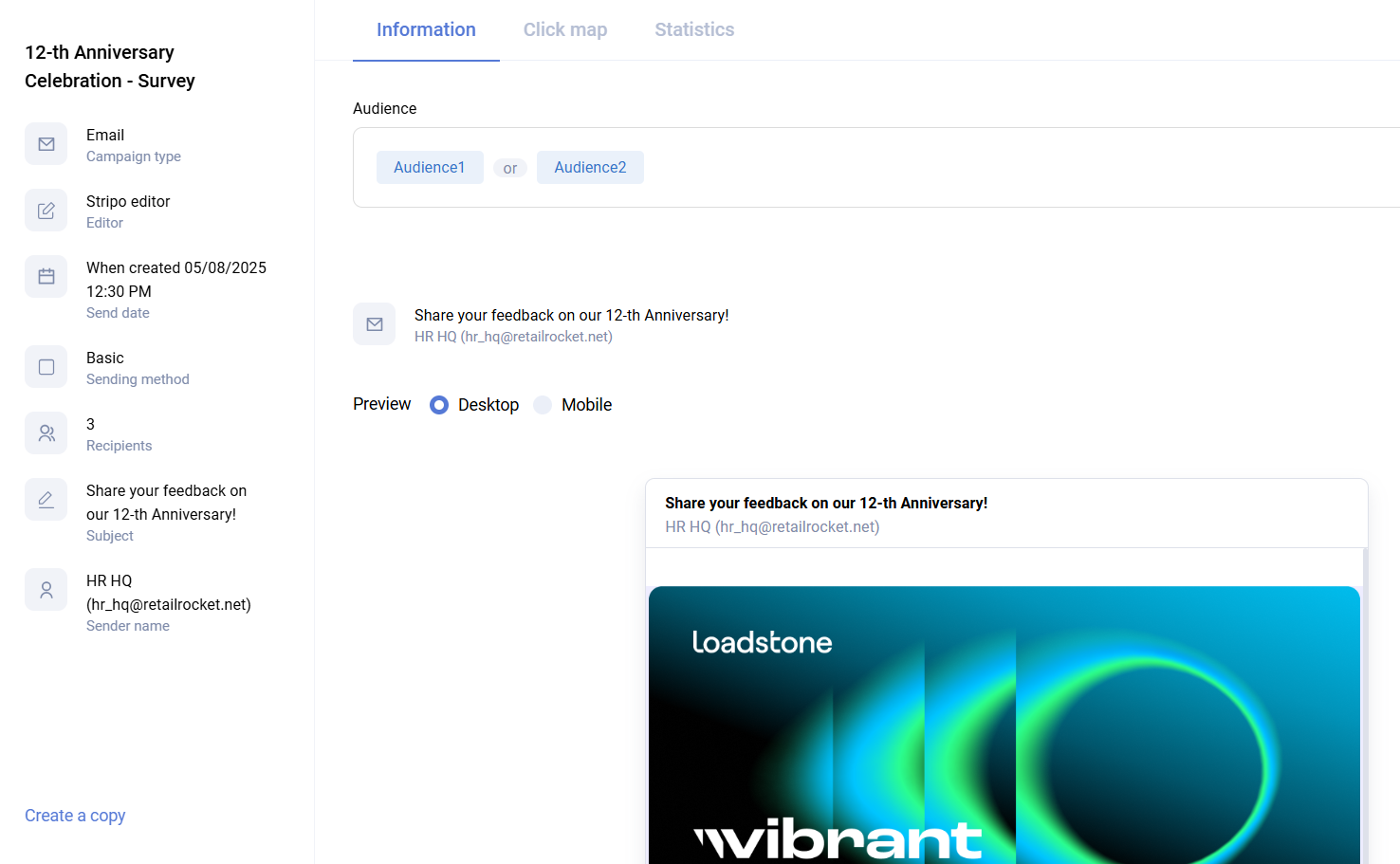
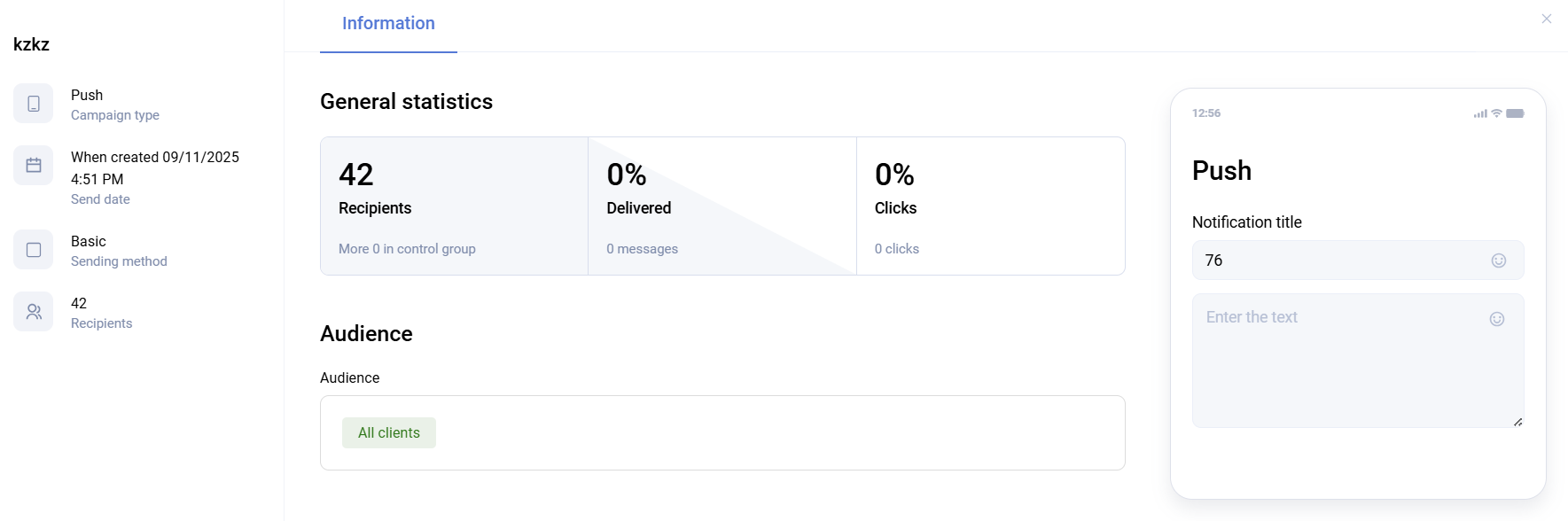
For SMS and Push mailings, this is the only analytics section, and in addition to the basic information it also contains the overall mailing statistics.
Click map (relevant for email)
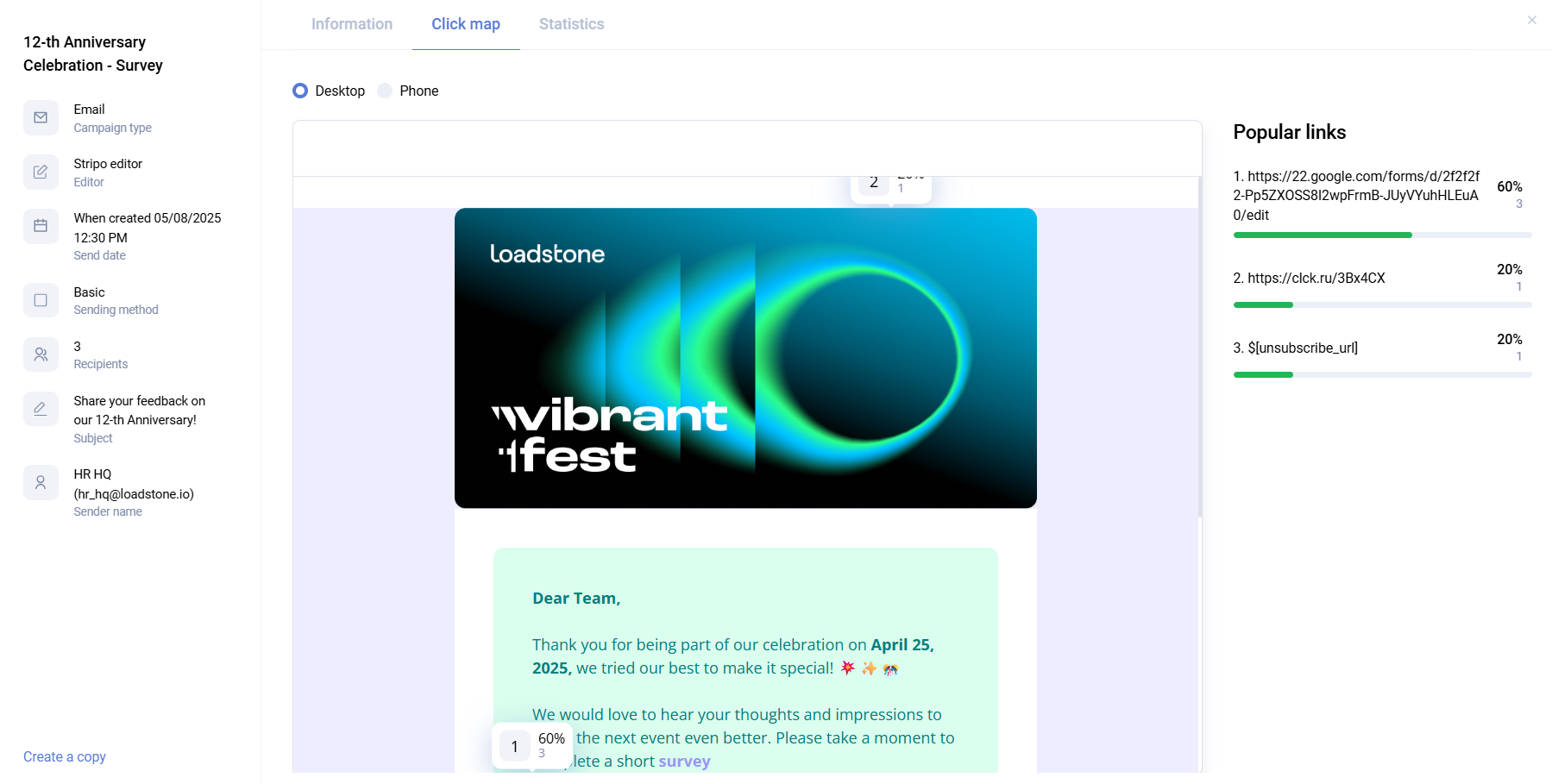
The click map shows statistics for each link contained in the mailing.
Statistics (relevant for email)
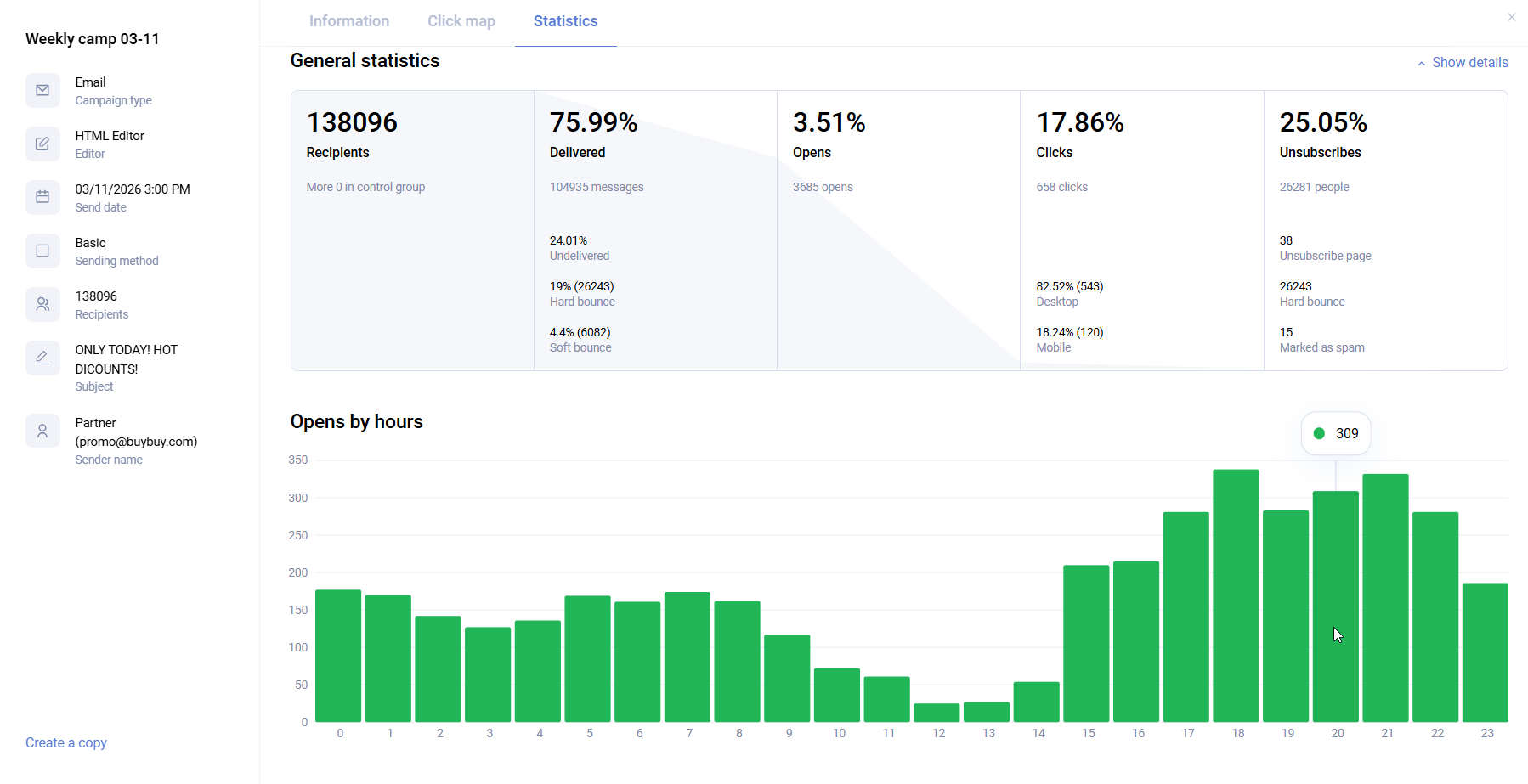
The statistics section provides more detailed information about mailing results:
-
General statistics:
-
Number of recipients. If a control group exists, its size is also shown.
-
Delivered emails, including both the percentage of recipients and the number of delivered emails. The share of soft bounce and hard bounce is also shown.
-
Opened emails, including both the percentage of delivered emails and the number of opens.
-
Clicks, including both the percentage of opens and the number of clients who clicked. The interface also separates mobile and desktop opens.
-
Unsubscribes, including both the percentage of opens and the number of unsubscribed recipients. The interface distinguishes between clients who unsubscribed themselves and clients unsubscribed automatically because of hard bounce.
-
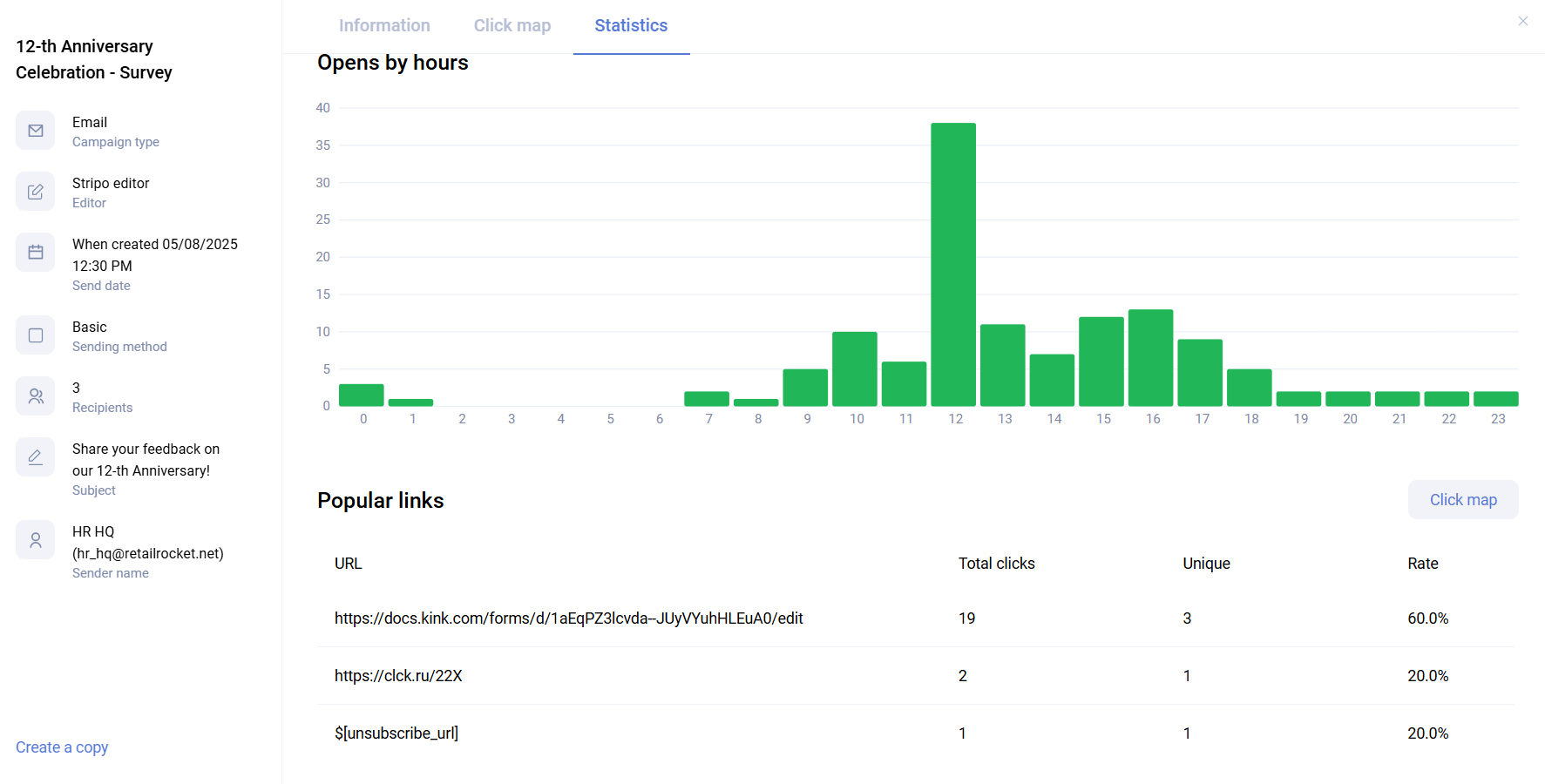
Email opens by hour. This chart shows how many opens happen at each hour of the day, regardless of whether the mailing was sent one day ago or ten days ago. It continues updating as long as clients keep opening the mailing.
Below that, you can see more detailed analytics from the Click map section.