Settings
The Settings section allows you to configure the main company parameters, loyalty program rules, communication settings, and employee access rights.
General
The general settings contain the basic company information and default bonus point calculation rules.
Company
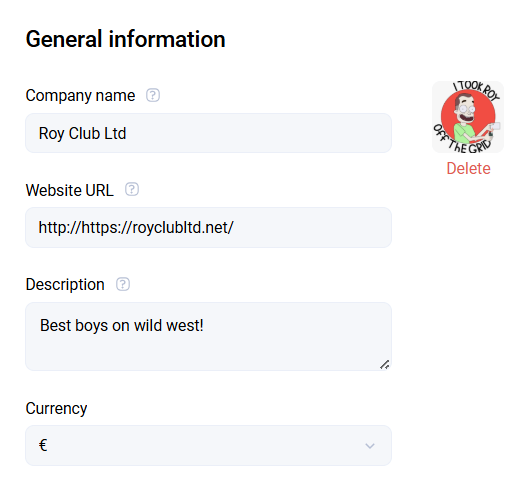
The main company information includes:
- Company name, which is displayed in the interface.
- Website address - the company website, which can be used as a variable in communications.
- Description - reference information describing what the company does.
- Currency - the currency whose symbol is displayed in all purchases.
- Company logo.
Bonus points
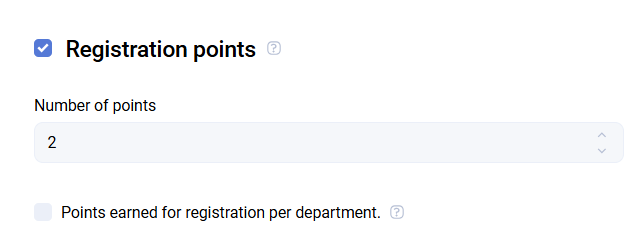
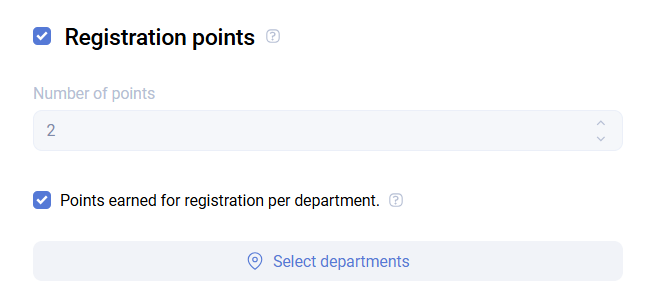
Points for registration
Here you can specify how many points a client receives when joining the loyalty program. If you enable Different number of points for registration for each department, a separate configuration block appears for each department.
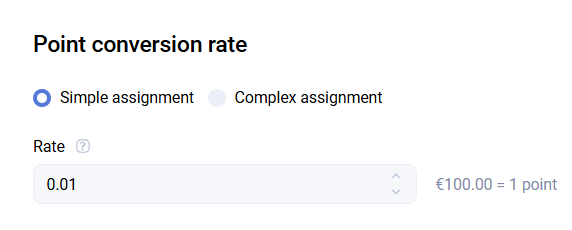
Rubles to points conversion
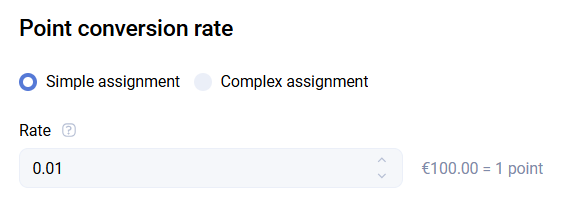
There are two accrual types:
- Simple accrual - a coefficient based on the receipt amount is specified. For example, with a coefficient of
0.10,100rubles gives10points. - Advanced accrual - different numbers of points are accrued depending on the purchase amount. For example, purchases from
1to100rubles can accrue10%, and purchases from101to200rubles can accrue20%.
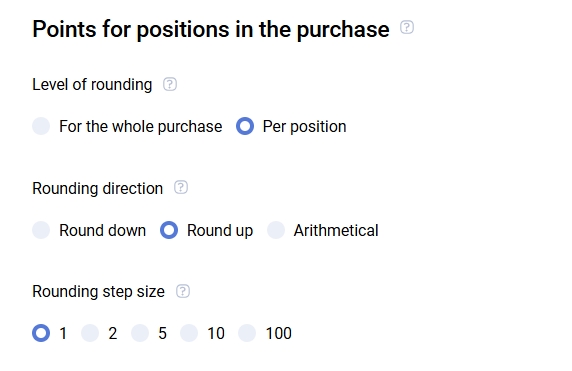
Points for receipt positions
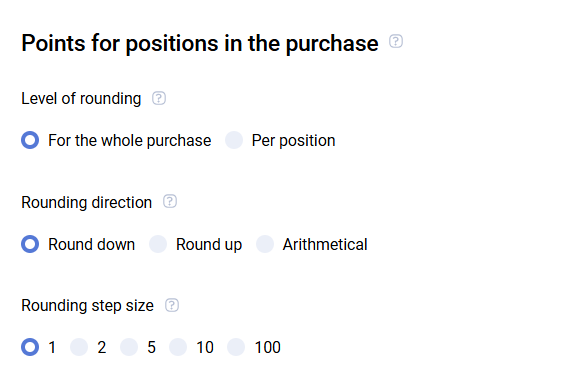
This block configures rounding rules for bonus point accruals:
- Rounding level:
- For the entire purchase - points are rounded after summing the unrounded points from all positions.
- For each position - points are rounded for each position first, then summed.
- Rounding direction:
- Down (
10.9 -> 10) - Up (
10.3 -> 11) - Arithmetic (
10.3 -> 10,10.9 -> 11)
- Down (
- Rounding step: accrued points become multiples of the selected value. For example, with a step of
2, all accruals become even numbers.
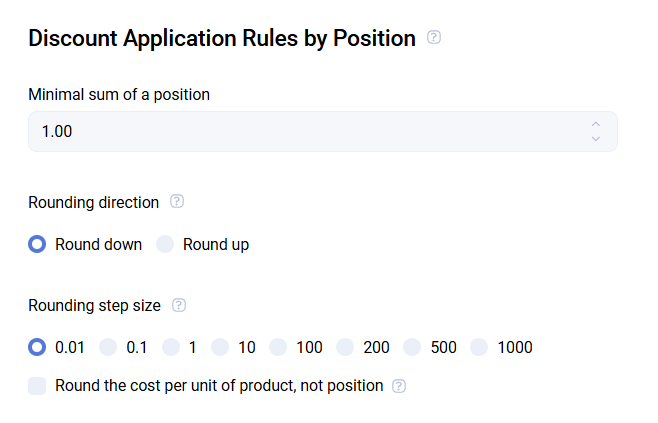
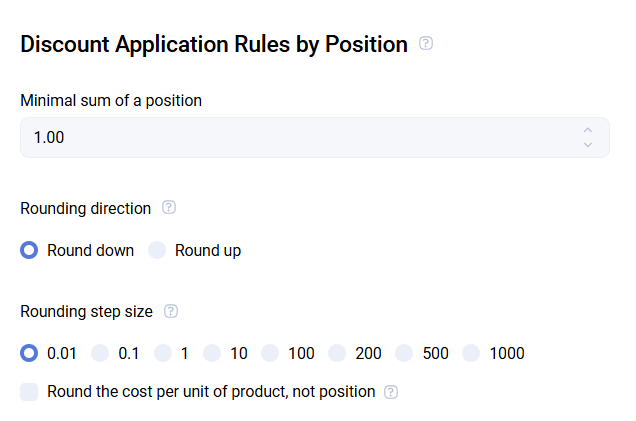
Rules for applying discounts to receipt positions
- Minimum position amount - the minimum product cost required to apply a discount.
- Price rounding direction - rounding to a whole number up or down.
- Price rounding step - each position cost is rounded to the specified value, for example to tens. You can configure rounding for a single item or for the full position.
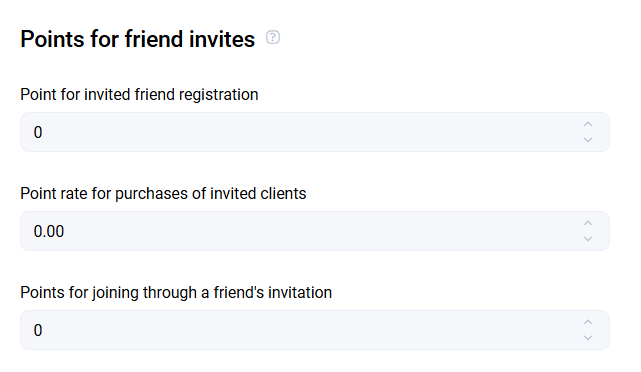
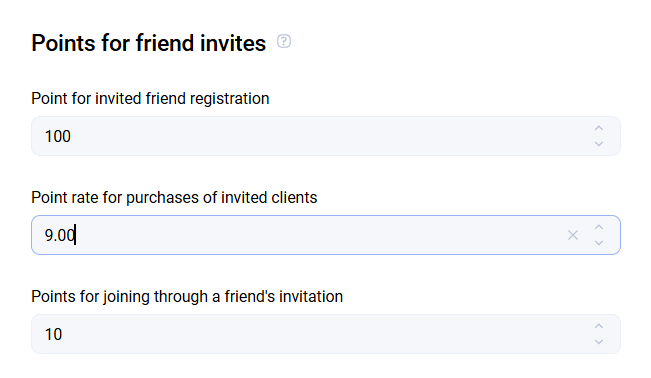
Points for inviting friends
- Points for invited friend registration - a reward for the referrer when a new participant joins.
- Point coefficient for invited friends' purchases - the percentage of points the referrer receives from their friend's purchases.
- Points for registration via invitation - a bonus for the new client who joined through the referral link.
Loyalty program
Additional program settings:
- Points for registration with department-specific settings
- Point conversion to real money
- Rounding rules for bonus points in a purchase
- Rounding rules for the discount amount in a purchase
- Referral program
Departments
This subsection contains all partner departments: retail locations, stores, mobile applications, or websites.
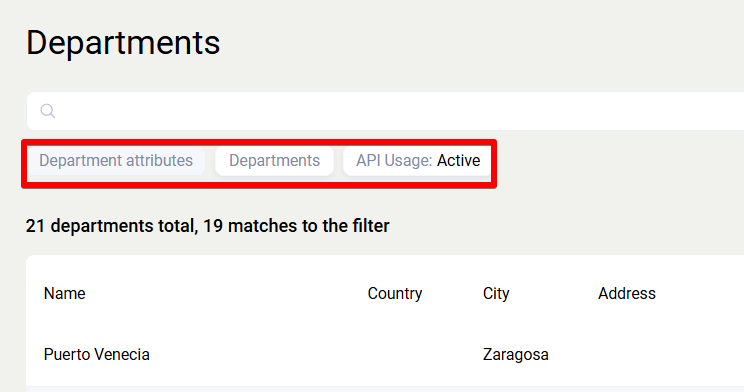
Departments can be filtered by attributes, subdivisions, or API activity.
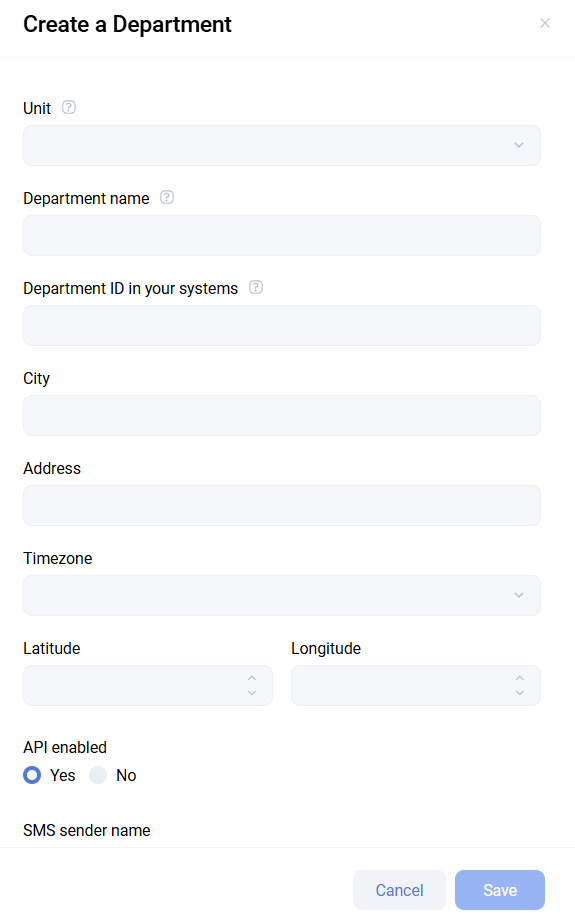
Creating and editing a department
When creating a new department, specify:
- subdivision
- name, such as the location name or address
- department ID in your system, the external identifier
- city and address
- time zone, latitude, and longitude
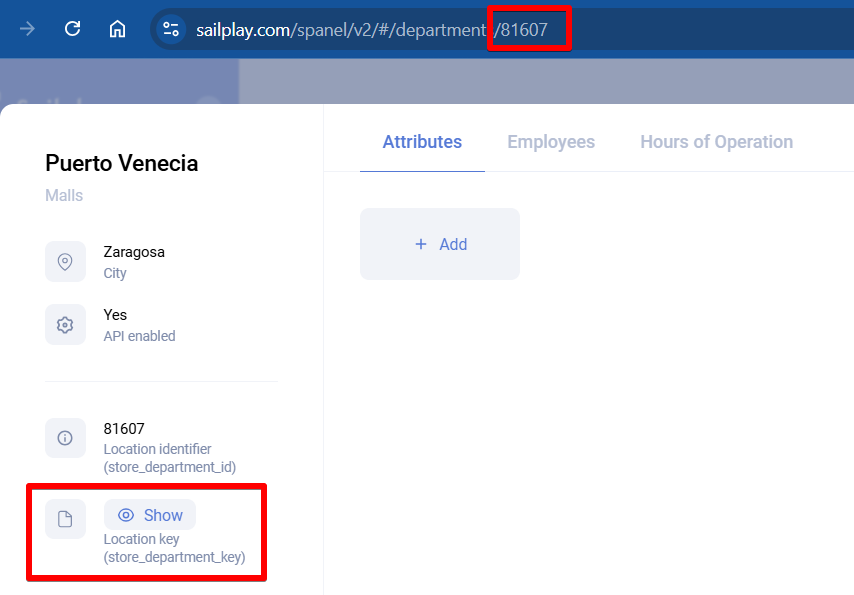
The department card includes:
- store_department_id - displayed in the browser address bar
- store_department_key - the key used for API operations, hidden by default
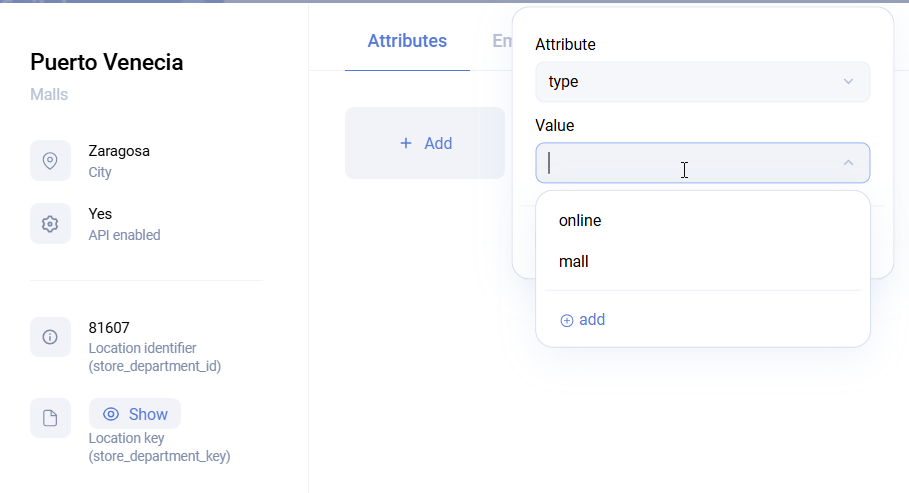
- Department attributes - custom fields
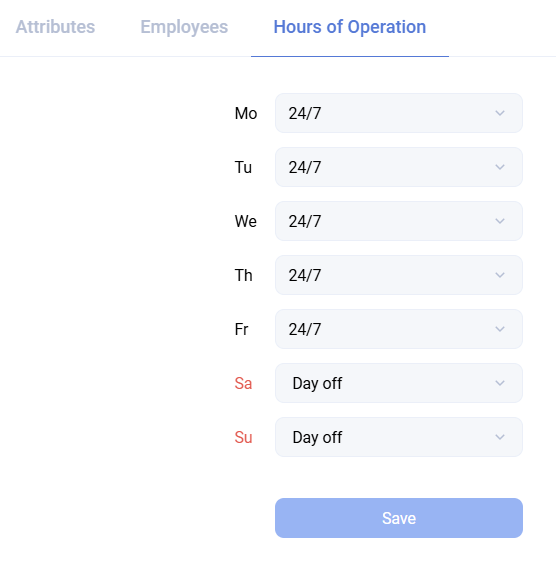
- Working schedule
Employee list
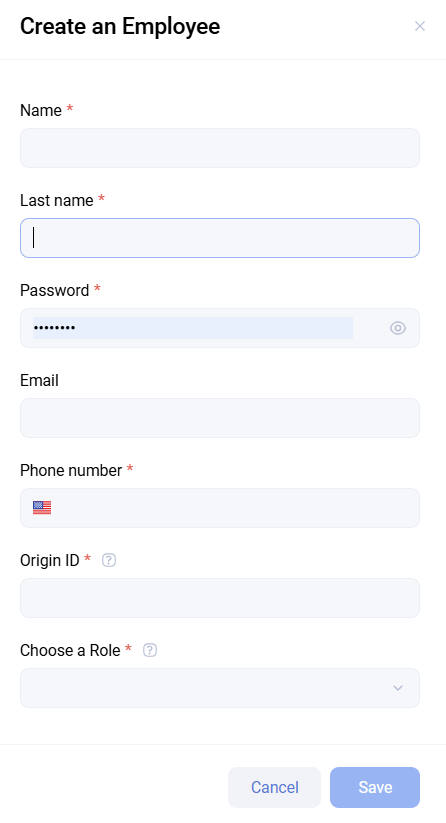
Employee access management includes:
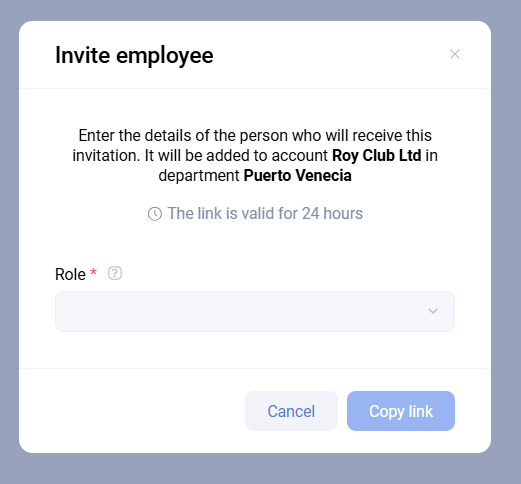
- Invite - generates an invitation link with a selected role. The link is valid for 24 hours
- Add employee - a direct creation form. In the current version, invitation links are recommended instead
- Download - exports the employee list as CSV
Roles
This section is used to create and edit permission sets.
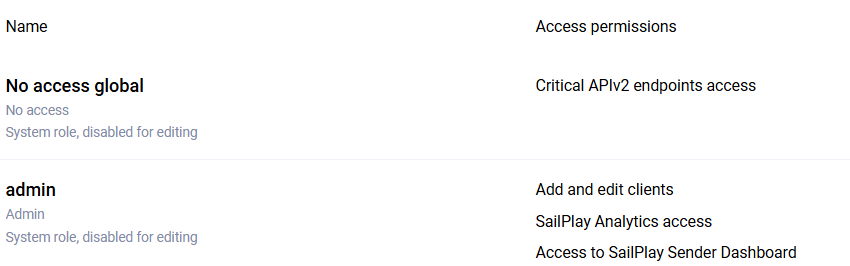
- System roles - preconfigured roles available in all dashboards
- Custom roles - roles created by the partner. They can be edited through the three-dot action menu
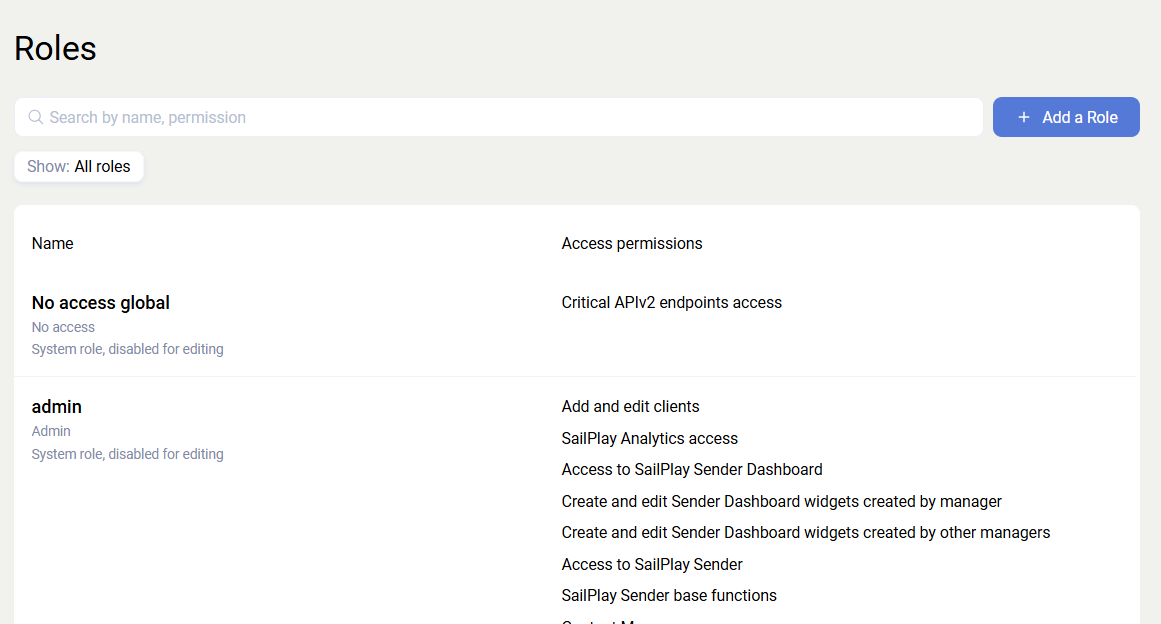
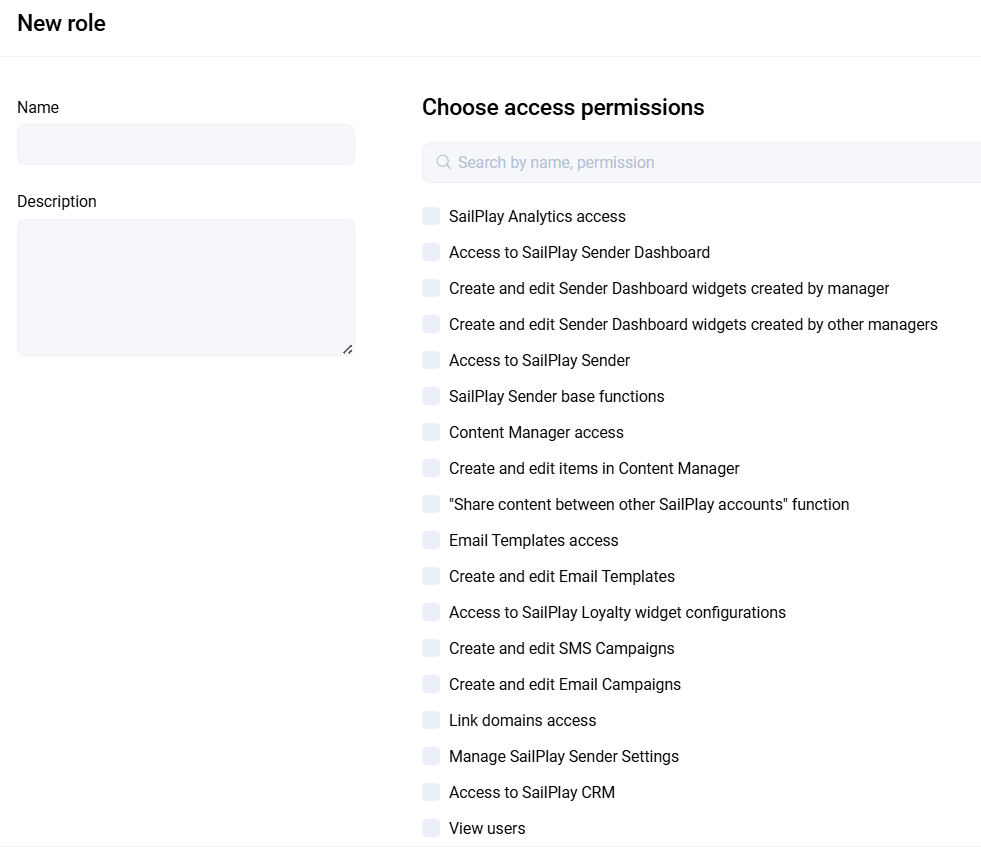
When creating a role, specify its name and description, then select the required permissions such as view, edit, and others.
Communication
Domains
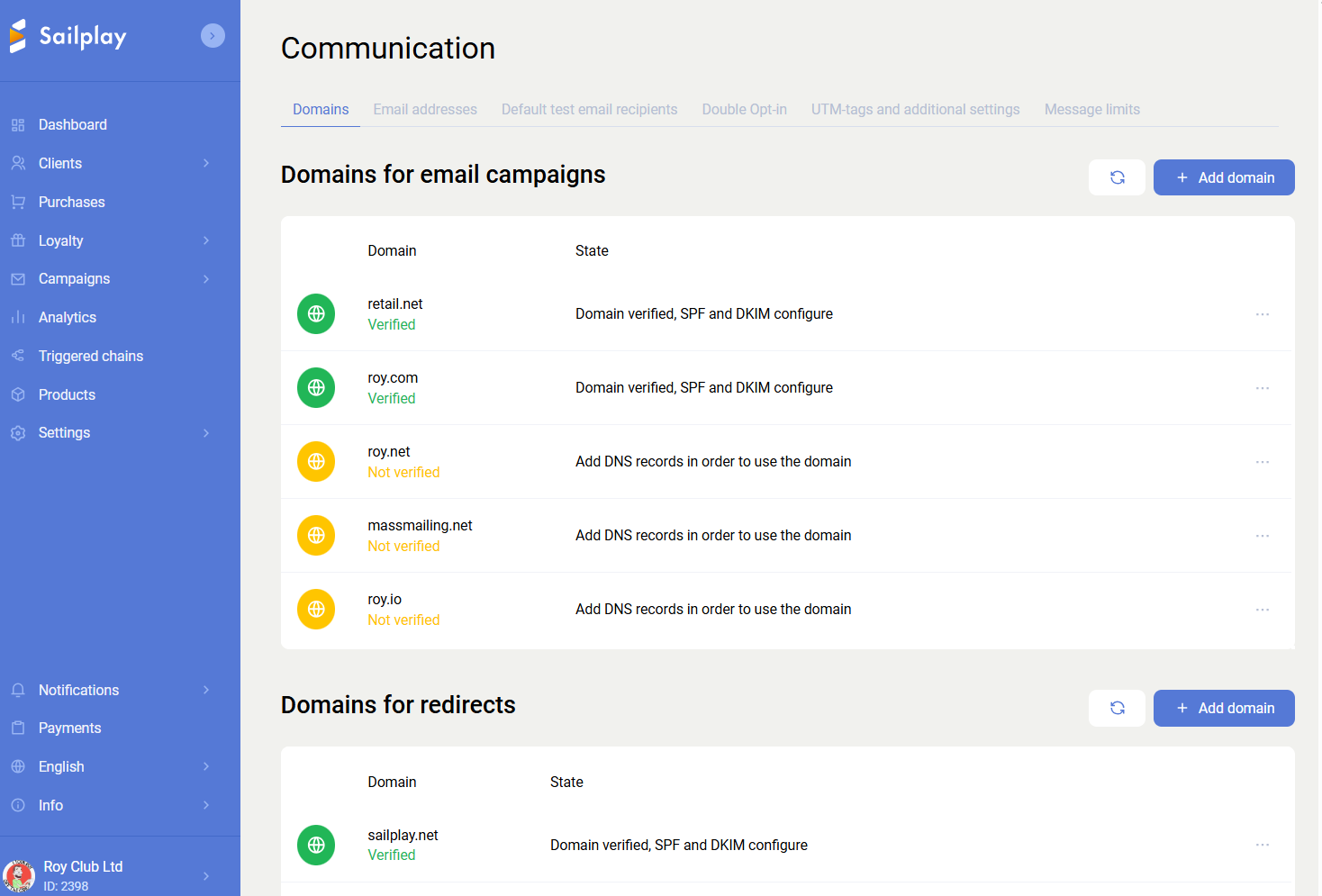
This is the list of verified domains from which Email mailings are allowed to be sent. A domain is added in the dashboard and then must pass administrator moderation.
- DKIM and SPF: the partner must add the required DNS records for verification.
Email addresses
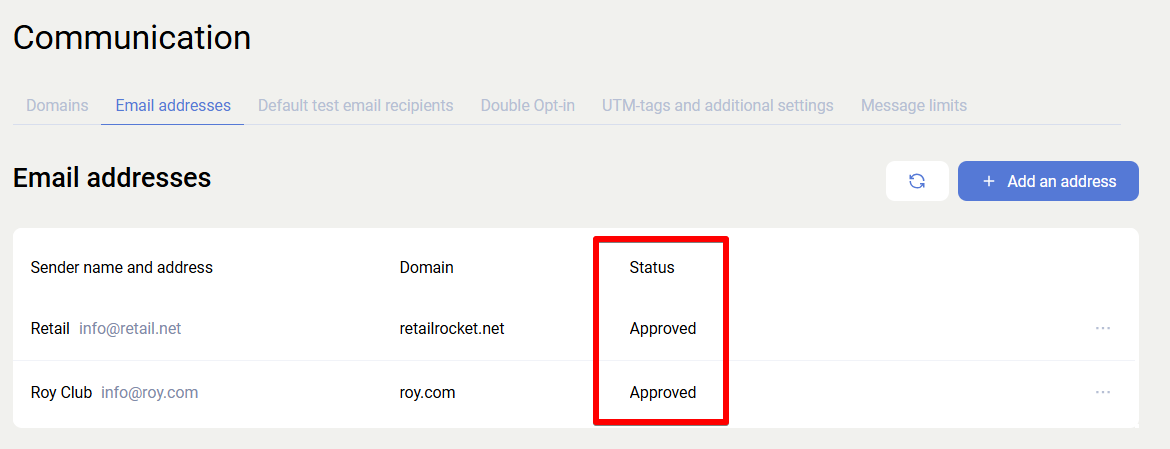
Sender address settings. Each address includes:
- the name, which is the part before
@ - the domain, selected from the list of verified domains
- the sender name, displayed in the recipient's
Fromfield
Test mailing recipients
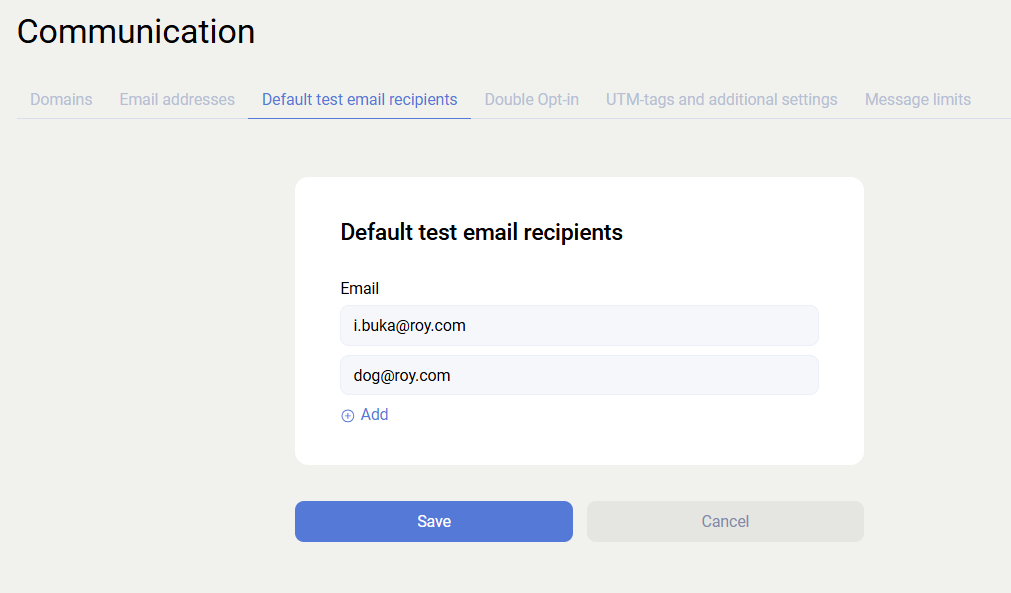
This is the list of employee email addresses used for quick test sends before launching the main mailing.
Subscription confirmation (DOI)
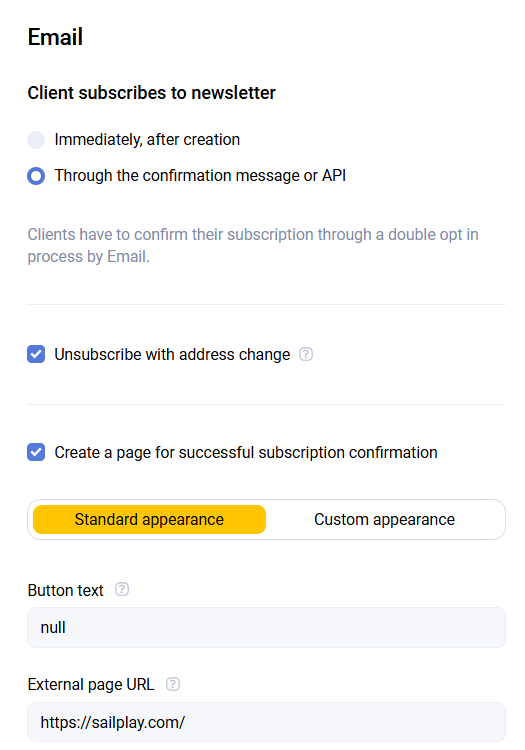
Configuration of the Double Opt-In mechanism:
- Via confirmation email - automatically sends a service email during registration
- Unsubscribe when the address changes - if a client changes their email, the old subscription is canceled and the
Email changedtag is assigned so DOI can be requested again - Confirmation page - configures the page a user sees after clicking the link in the email, either the standard page or custom HTML
Message limits
This subsection configures limits for sending SMS via the API to avoid excessive costs or spam.
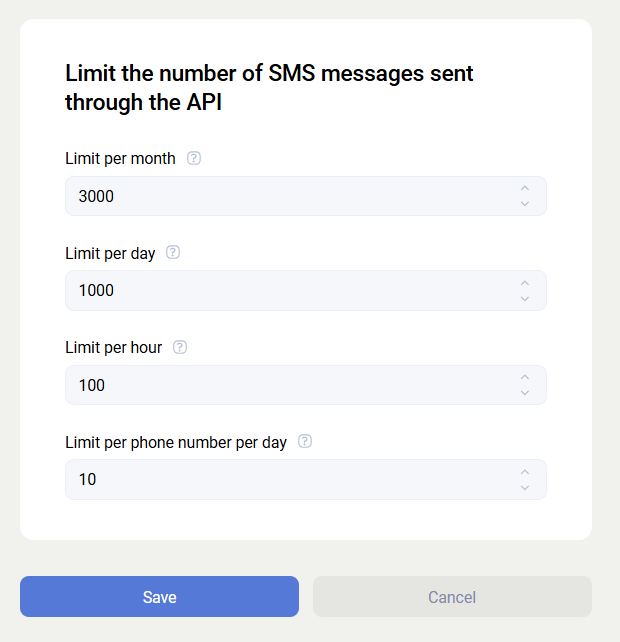
Available limits:
- maximum sends per month
- maximum sends per day or hour
- daily send limit for a specific phone number