Products
The Products section allows you to create and edit products, product categories, and product attributes.
In the Sailplay API, the main identifier used for products and product categories is SKU. In the interface, SKU corresponds to the article number of a product or product category.
Product management interface
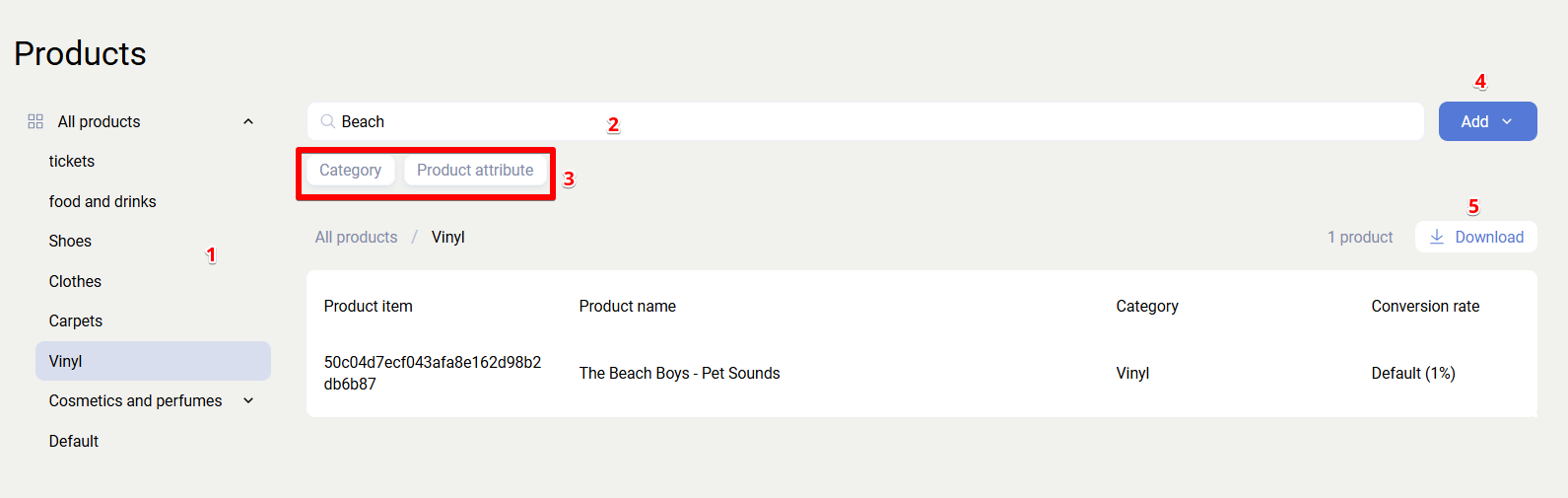
Main interface elements
- Product categories - displays the list of categories.
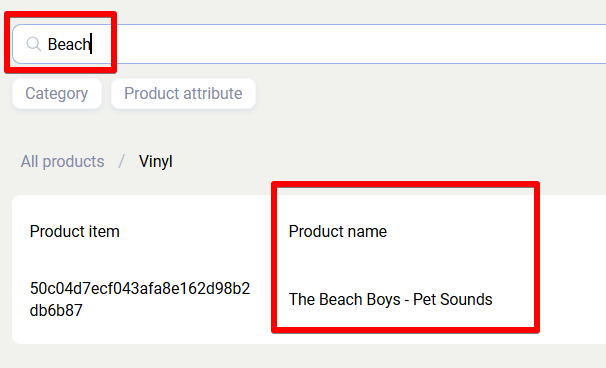
- Product search - search by article number and product name.
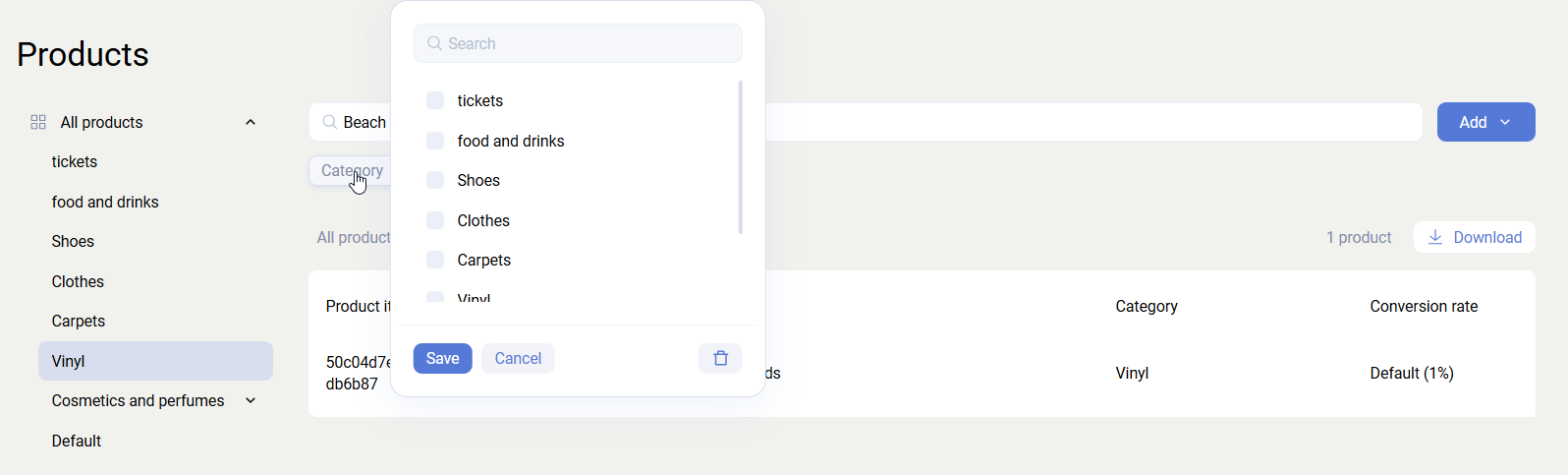
- Filters - by categories and product attributes.
- Add products - button for creating a new product.
- Download products - button for downloading all products as a file.
Product categories
Each category can belong to only one parent category, but it can have an unlimited number of child categories. Sailplay also supports multiple nesting levels, for example Main category -> Subcategory -> Second-level subcategory.
Product categories can be created:
- via the API method
/api/v2/basket/categories/add/ - via the interface
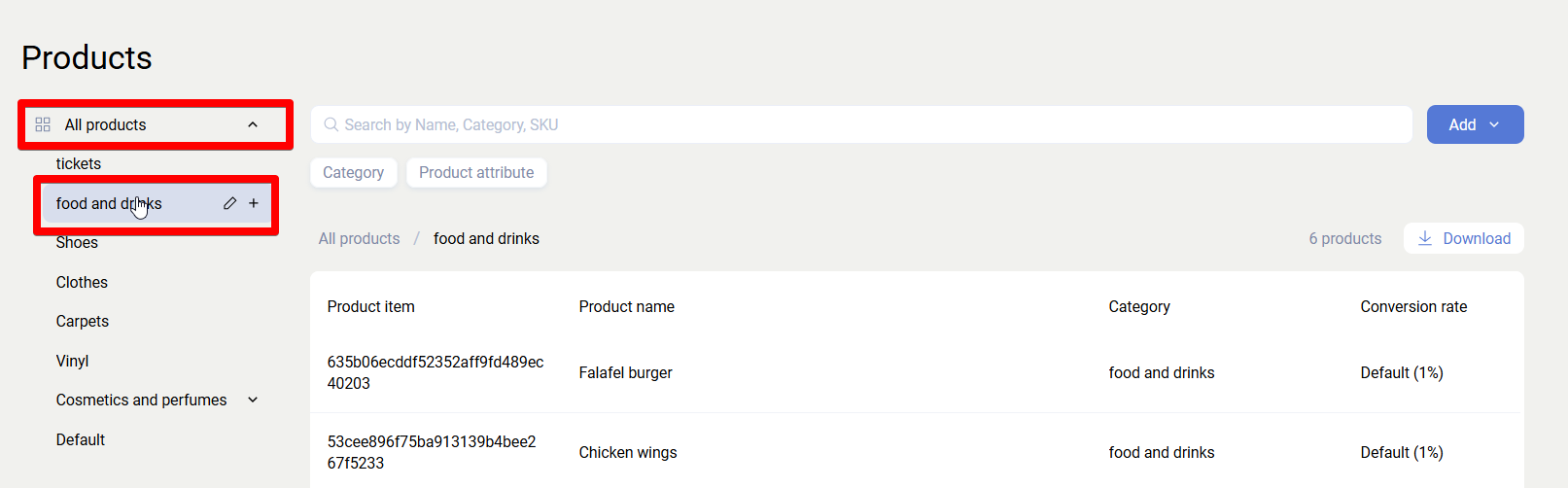
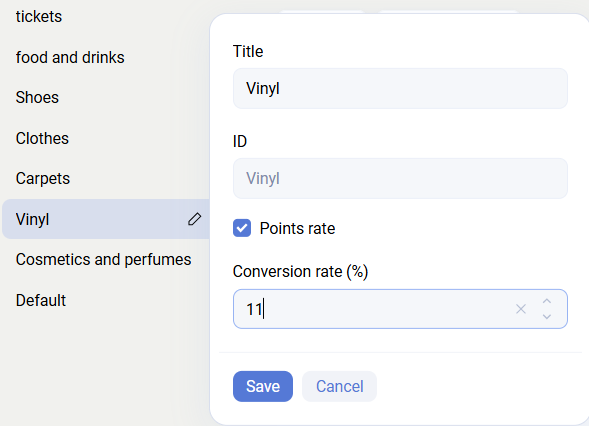
The icons next to each category name let you:
- rename the category
- create a new subcategory
To create a new category, use the plus icon at the catalog level.
Categories cannot be deleted permanently. You can create a category called Deleted categories and move categories there when needed.
Categories can be moved from one category to another only via the API method /api/v2/basket/categories/edit/
Products
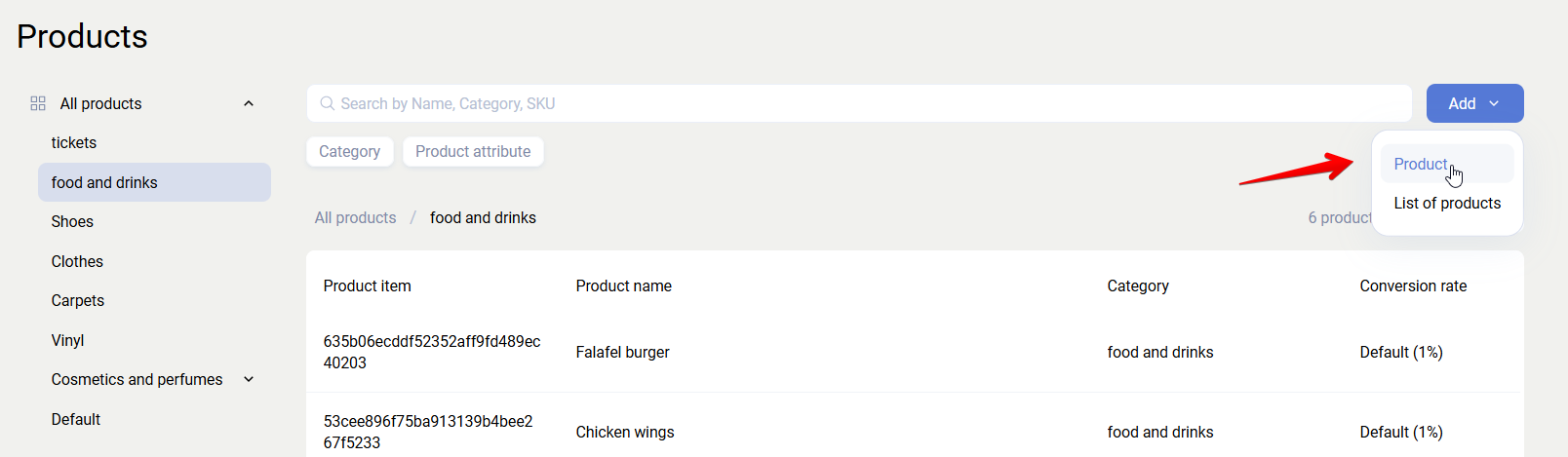
Products can be created:
- via the API method
/api/v2/basket/products/add/ - via the interface (Add -> Product)
Products cannot be deleted permanently. You can create a category called Deleted products and move products there when needed.
Products can be moved from one product category to another only via the API method /api/v2/basket/products/edit/
Product card
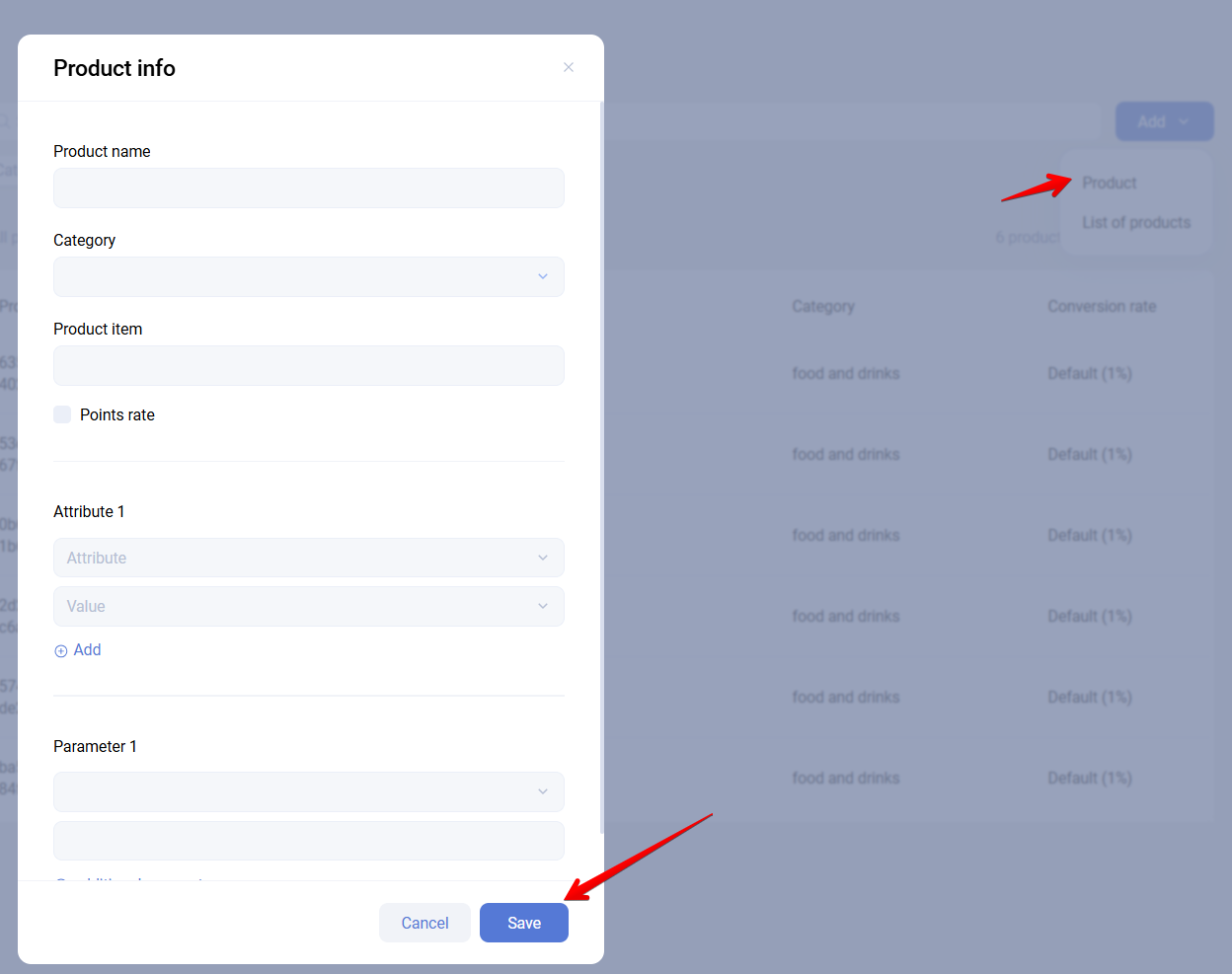
Clicking Add - Product or any existing product opens the product card, where you can view and edit:
- product name
- article number
- attributes and parameters
- special conversion coefficient
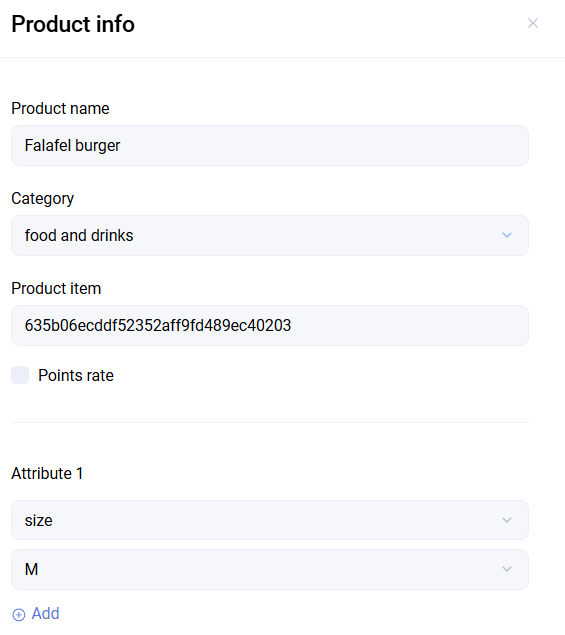
The product name must be unique. If you try to add a product with a name that already belongs to another product, an error will be returned.
Product attributes
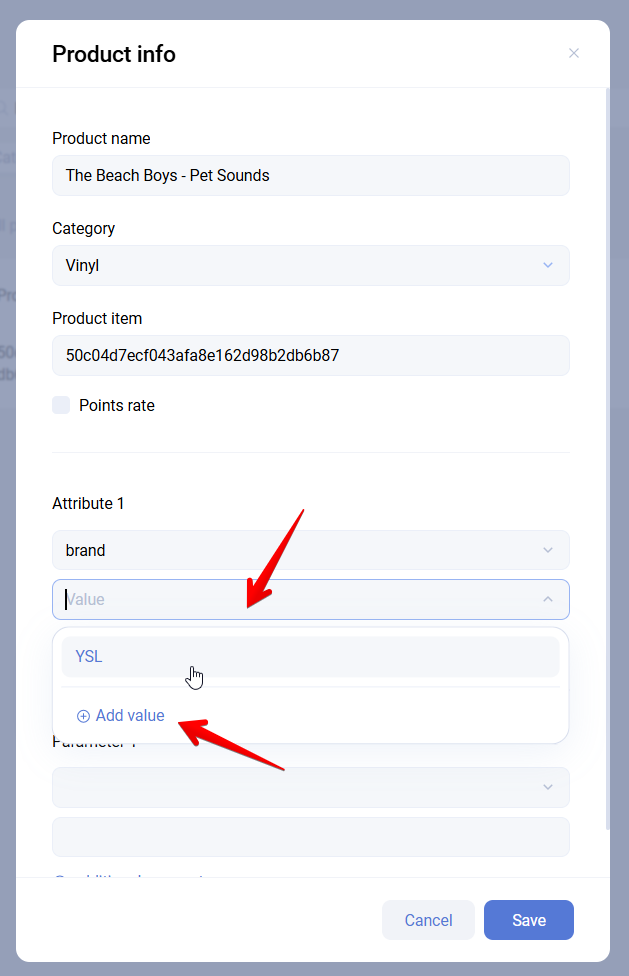
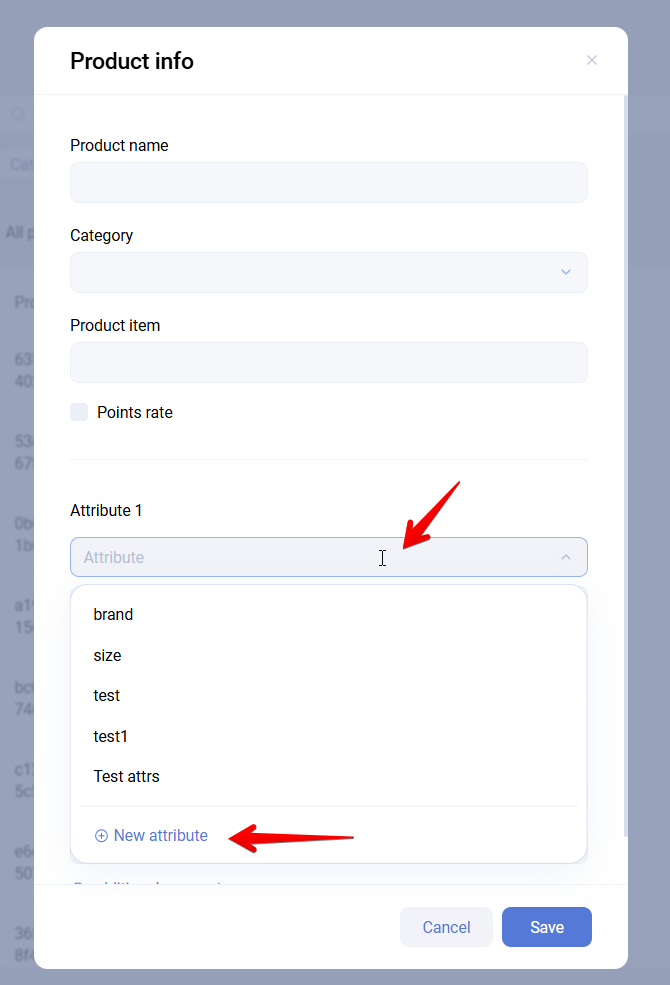
Attributes are used to define product qualities or properties and to group products by common characteristics, for example Material -> Leather, Fabric.
Creating attributes:
- via the product card
- via the API:
- Add an attribute:
/api/v2/basket/attributes/add/ - Add an attribute value:
/api/v2/basket/attributes/values/add/ - Assign an attribute value to a product:
/api/v2/basket/products/attributes/add/
- Add an attribute:
Attribute types
- Single-value - each product can have no more than one value, for example color or model year.
- Multi-value - a product can have several values at the same time, for example composition or authorship.
Attribute value types
- Text - any string values.
- Number - numeric values only, including negative and fractional numbers.
Numeric values can be used in range-based filters. String values support exact matching only. Purchases have a separate entity called a position attribute. Do not confuse it with a product attribute.
Product search
Search is available:
- by article number;
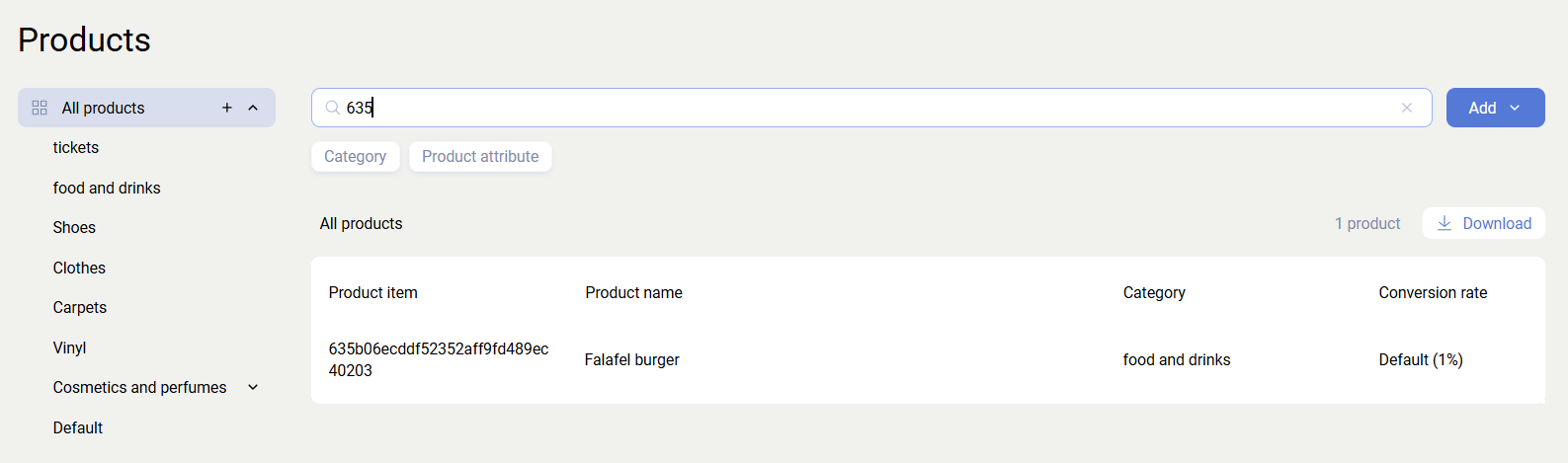
- by product name.
Conversion coefficient
The conversion coefficient determines what percentage of the product price is returned to the client as bonus points, that is, cashback.
- Default coefficient: configured in the general settings (Settings -> Bonus Points -> Rubles to points conversion).
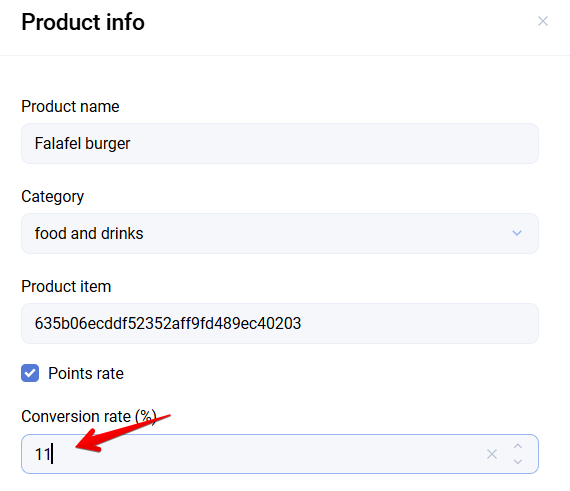
- Special coefficient: can be set for specific products or categories, overriding the default value.
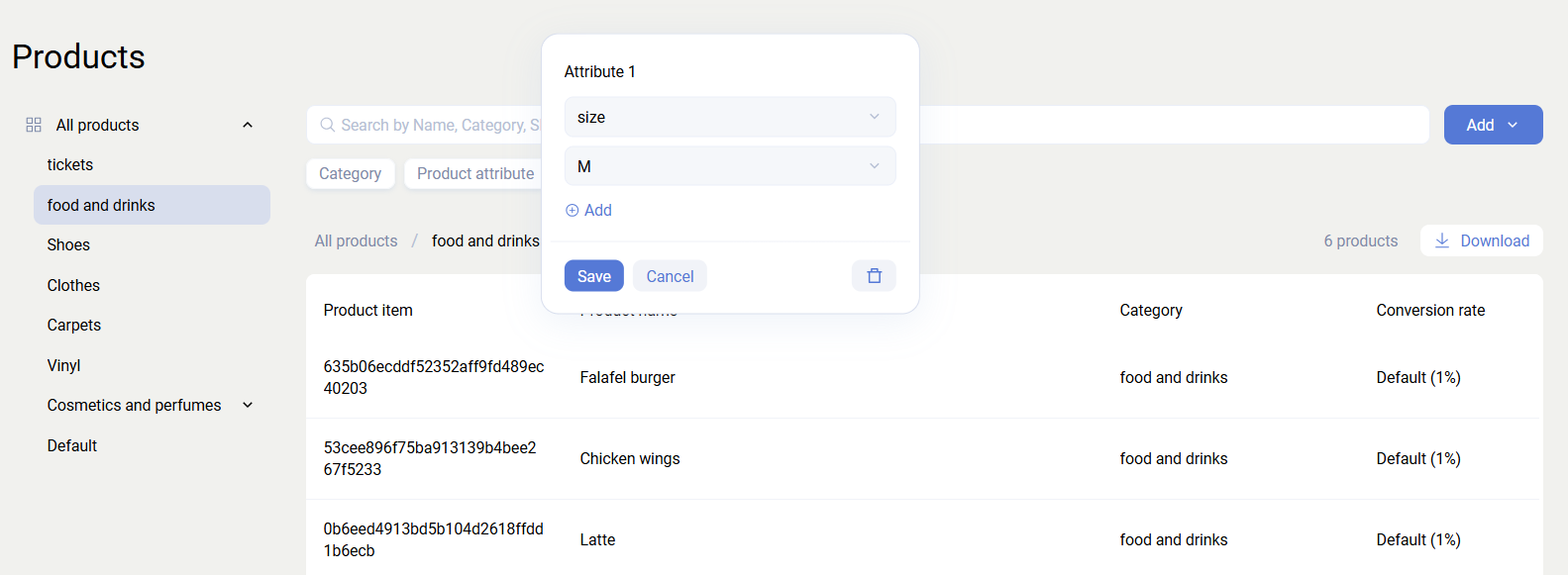
Filters by categories and attributes
Filtering options:
- by product categories using a dropdown list
- by product attribute values
Uploading products to the dashboard
Adding a single product
- Fill in the product card: select a category, enter the article number, and specify the name.
- Attributes are optional and should be filled in only when needed.
Bulk product upload
The most convenient way to upload products in bulk, including the initial upload, is the Sailplay API. However, the interface also provides bulk upload options.
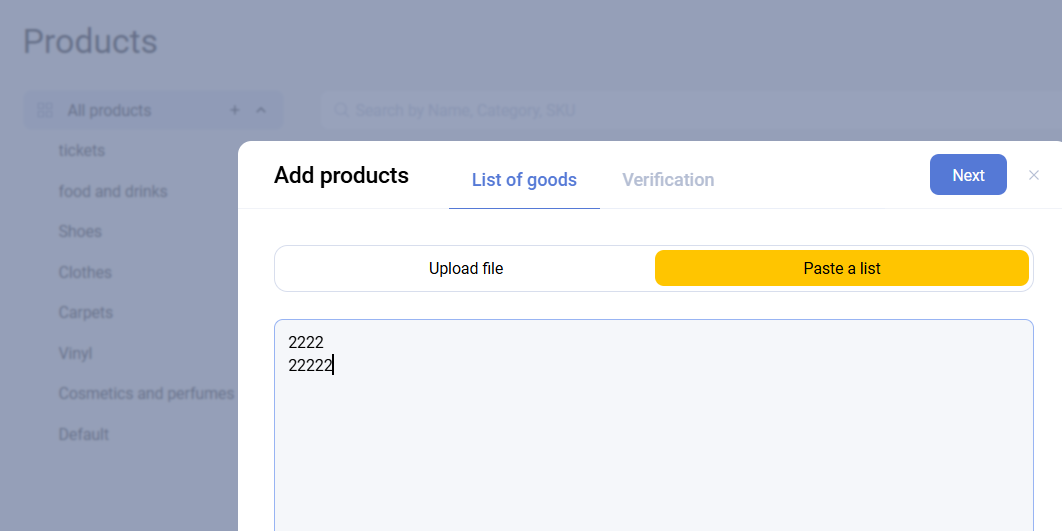
Paste a list
- Only product article numbers are uploaded.
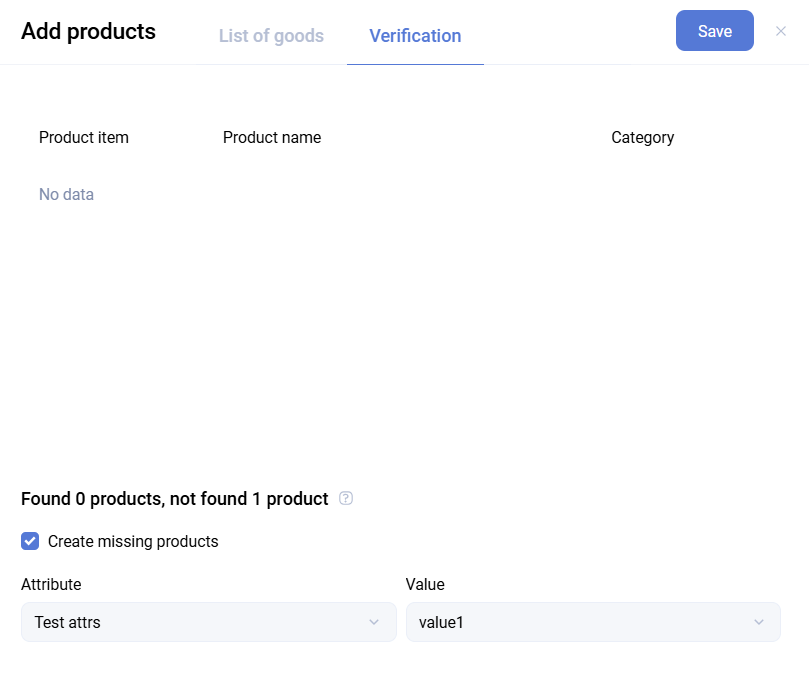
- On the next step, the system will prompt you to assign attributes.
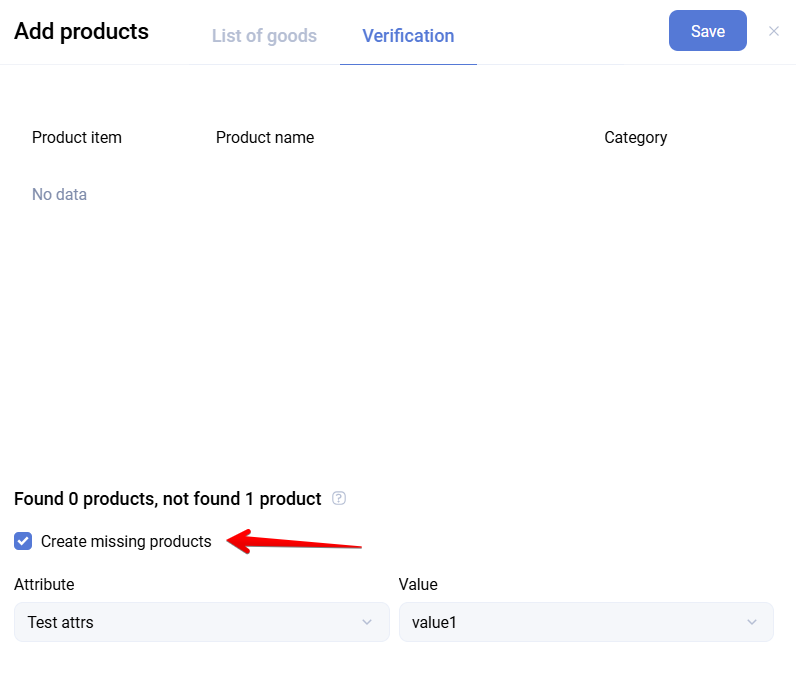
The interface displays information about products that already exist in the system with the specified article numbers. This allows the interface to be used not only for uploads, but also for adding attributes to existing products.
Upload a file
File format:
- The first column must contain the SKU (article number).
- The product name should also be included.
- CSV is recommended. XLSX and XLS files may cause processing errors.
After upload, the file is analyzed:
- the number of new and existing products is shown
- the
Create missing productscheckbox lets you add only new products