Purchases
General information
The Purchases section in the Sailplay dashboard stores all information about client purchases.
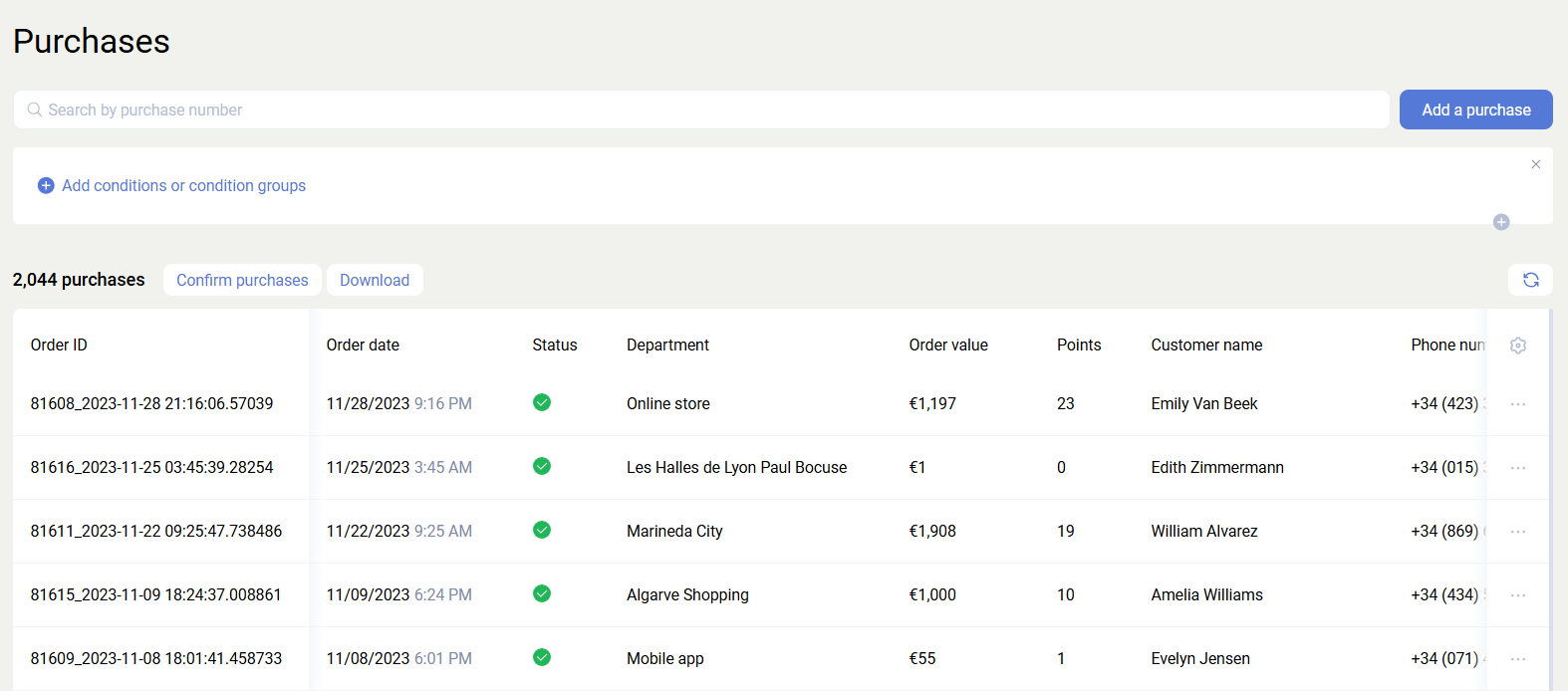
The purchase filter is identical to the client filter. Here you can also apply client and purchase filters and aggregate data. The main difference is that purchases also include anonymous purchases.
The Confirm purchases option allows you to confirm all purchases selected by the current filters, or all purchases in general. Purchases can be either confirmed or unconfirmed.

Sailplay can be configured to confirm purchases automatically and define the lifetime of an unconfirmed purchase. If you need this behavior, contact your manager or send a request to support@sailplay.net.
Download lets you export purchases in xlsx or csv format after selecting the required fields. The data is generated as a flat export.
Add purchase
Add purchase is used to create a purchase manually. After clicking it, fill in the fields in the modal window.
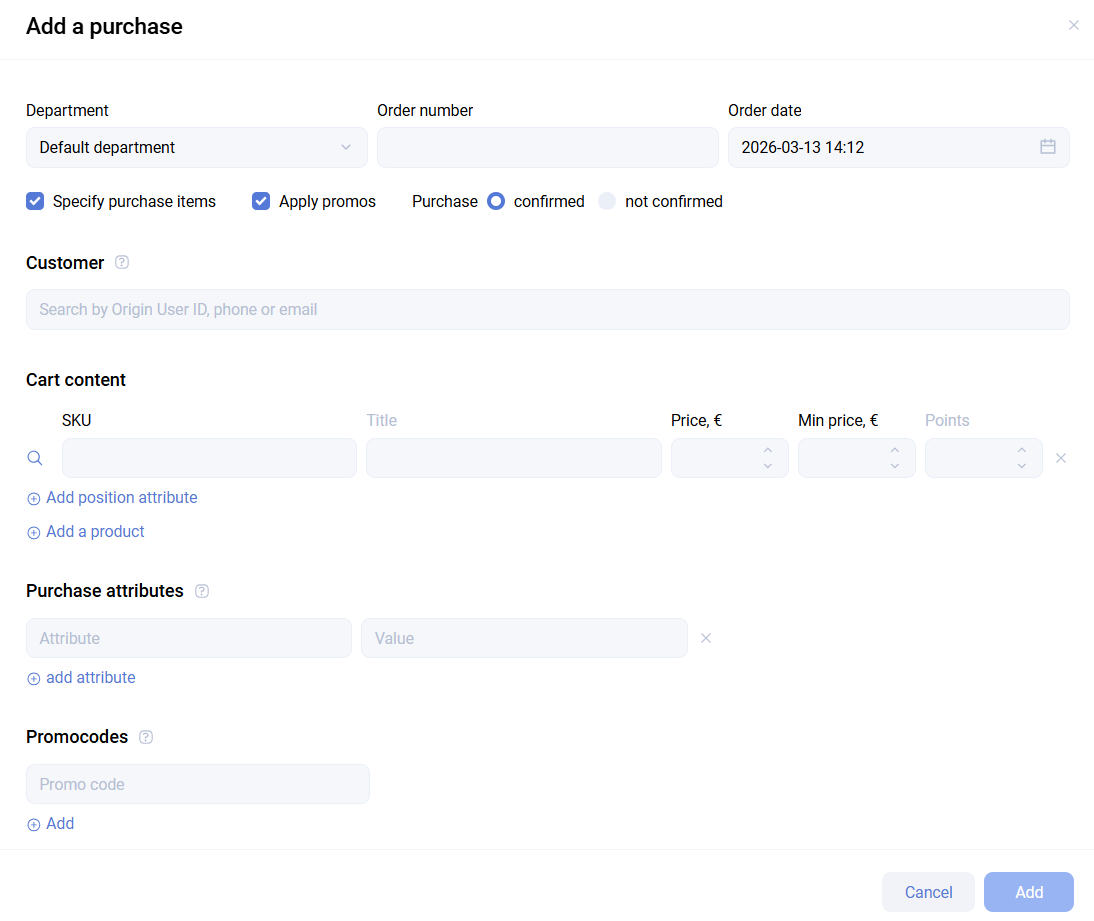
- Department - the point of sale where the purchase was made
- Order number - the order number in the partner's system
- Order date - the creation date, which may differ from the confirmation date
- Client - can be selected from the list of existing clients or left empty to create an anonymous purchase
- SKU - the unique product identifier in Sailplay
- Name - the product name. It is filled in automatically if the selected SKU already has a name
- Price - the product price
- Minimum price - the price below which the product cost will not fall after all applied promotions
- Points - how many bonus points should be deducted for this product
- Purchase attribute - the name of an order characteristic, for example a payment method
- Attribute value - the attribute value itself. For example, values of the
Payment methodattribute can becard,cash, orgift certificate - Promocode - if a promotion requires a promocode in its conditions, enter it here
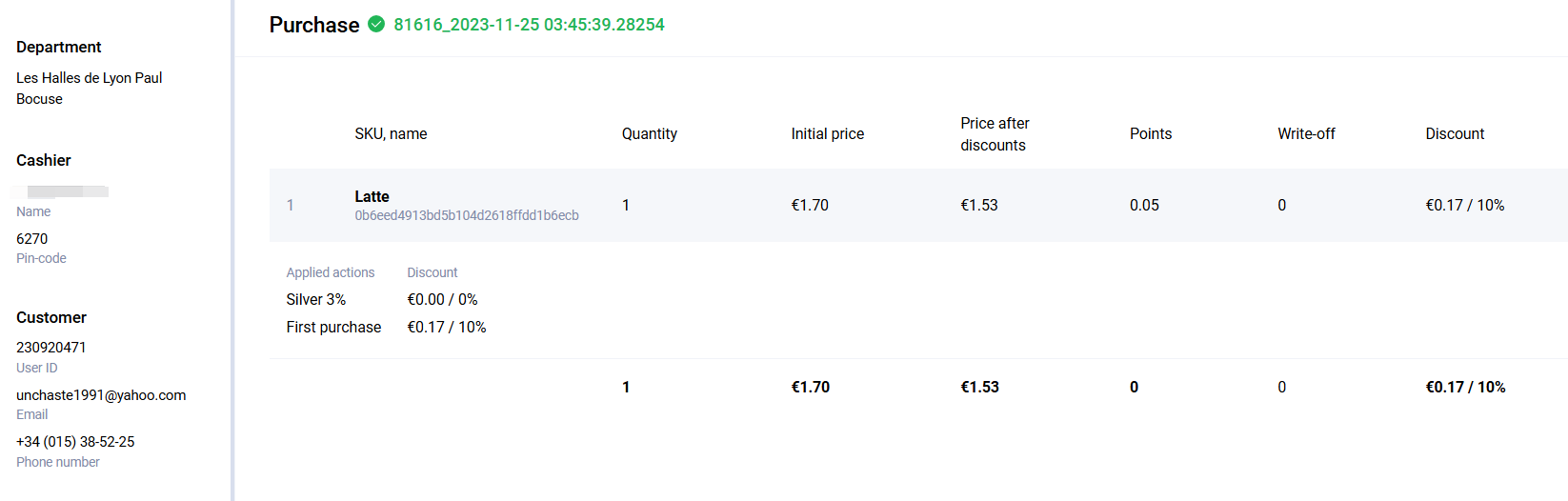
Purchase card
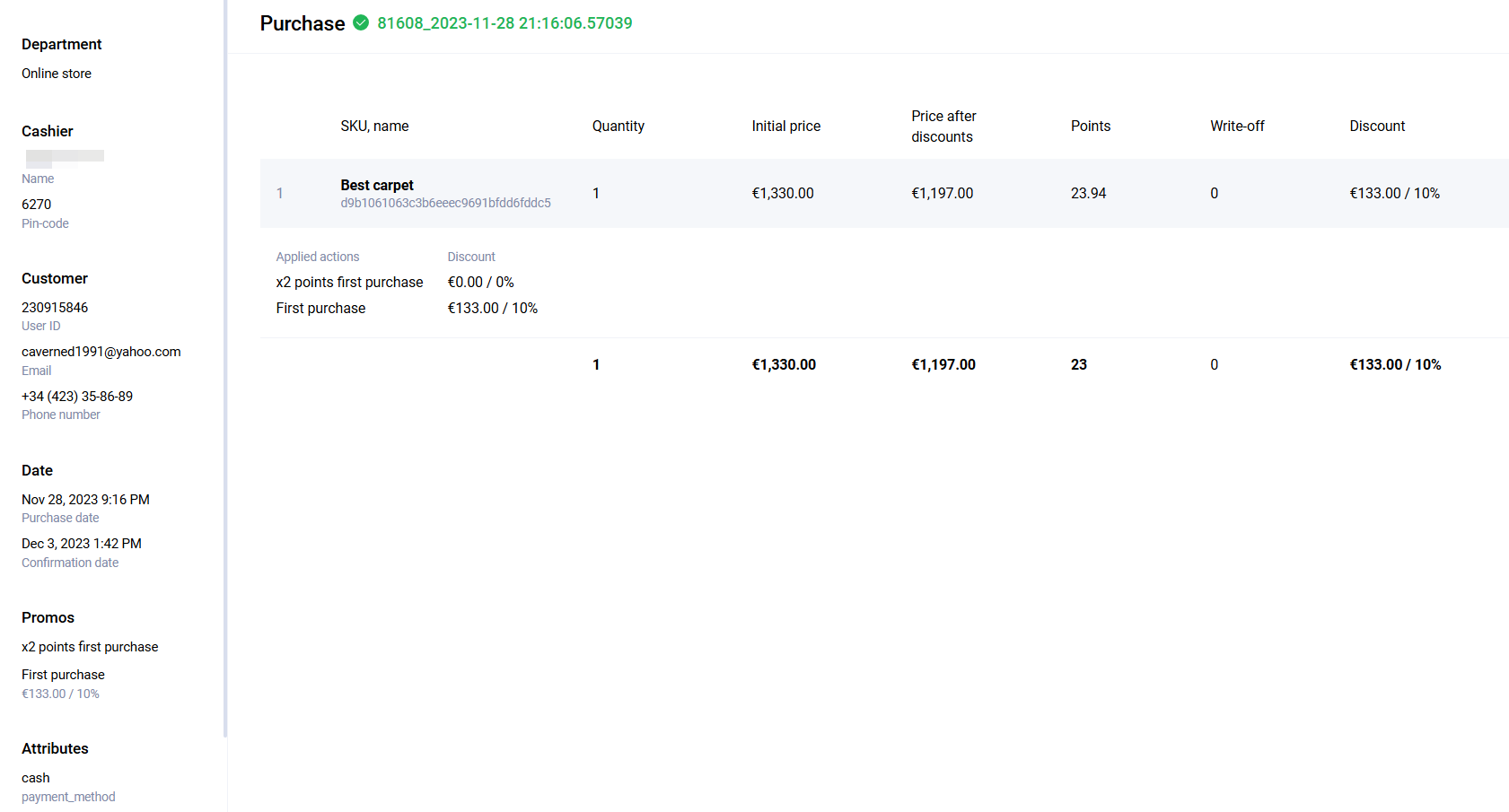
- Department - the location where the purchase was made: offline store, website, mobile app, and so on
- Seller - if the purchase creation request includes the employee
pin_codecreated in Sailplay, that employee's data will be displayed here - Client - all available information about the buyer. The field is absent for anonymous purchases
- Date - the order creation and confirmation dates
- Promotions - all promotions applied to the purchase
- Attributes - additional information about the purchase. For example, the
payment_methodattribute can indicate that the purchase was paid in cash - Purchase - the purchase number and status. In this example, the purchase is confirmed
- Promocode - the promocode used in the purchase
- Product list - for each product, the interface shows the price before and after discount, accrued and deducted bonus points, and the discount percentage
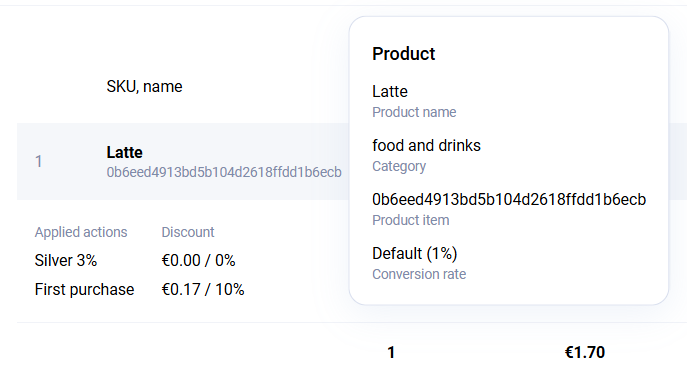
If you click a product in the purchase card, additional product information is shown. If you click a receipt line item, you can also view details about the promotions applied to that position.
In the lower-left corner of the purchase card, you can confirm the purchase, delete it, or change the client, including assigning another client or making the purchase anonymous. You can also copy a direct link to the purchase when needed.

If a purchase is deleted or reassigned to another client, the points that were accrued for that purchase will be deducted, and the points written off as a discount will be credited back. If the client does not have enough points at the moment of deletion or reassignment, an error will be returned. To resolve this, first accrue the required number of bonus points to the client and then delete or edit the purchase.
Purchase return
For each returned position in a purchase, the cost becomes zero, the points written off for that position are returned to the client's balance if they existed, and the points accrued for that position are deducted.
Returns cannot be processed through the interface and are available only via the API.
To find such purchases in the dashboard, set the purchase amount filter from 0 to 0.